If you are using Product Add-Ons Ultimate and the Image Preview or Text Preview extensions, you might want to display a different product image on the shop page from the default featured image on the product page itself.
For example, the featured image for the Custom T-Shirt Designer in the screenshots below in different in the shop page and the product page. This is what the user sees in the shop page:
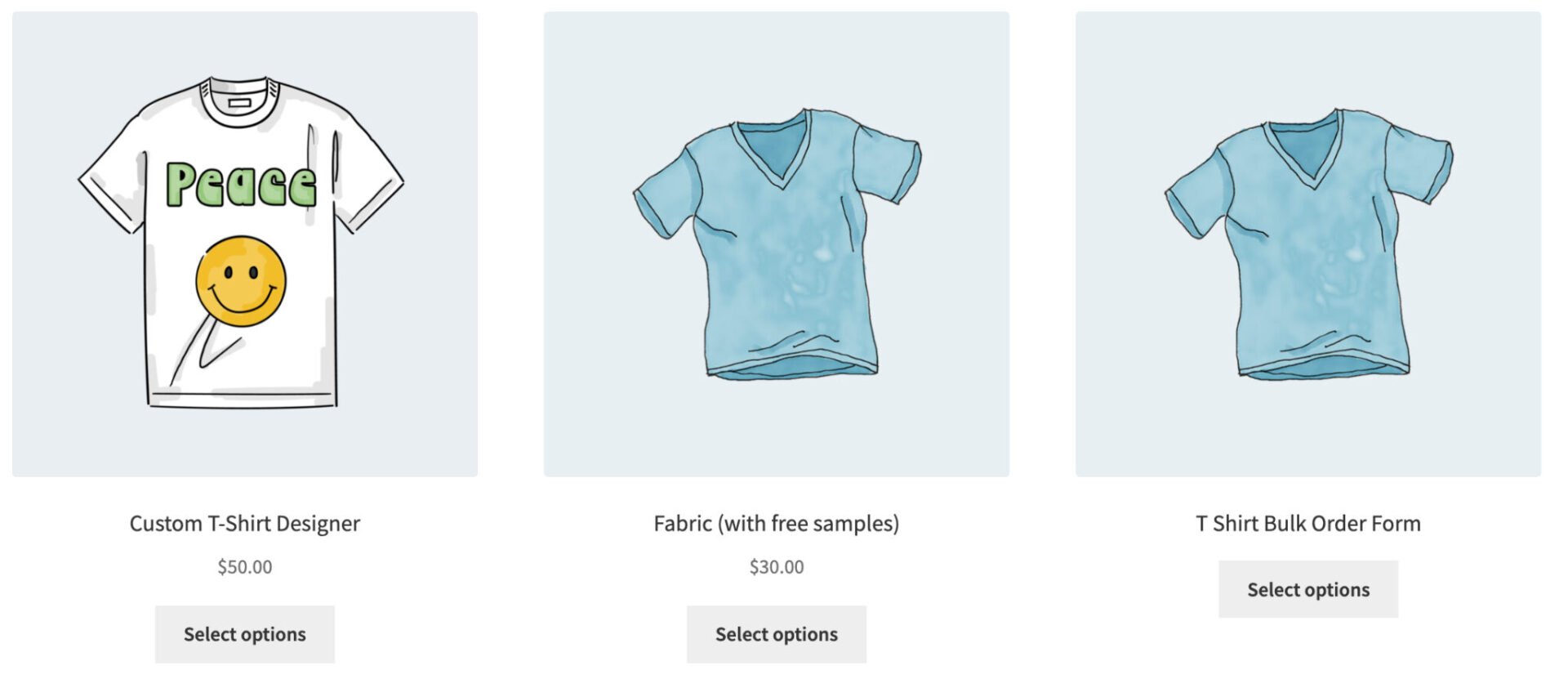
And this is what they see when the access the product page:
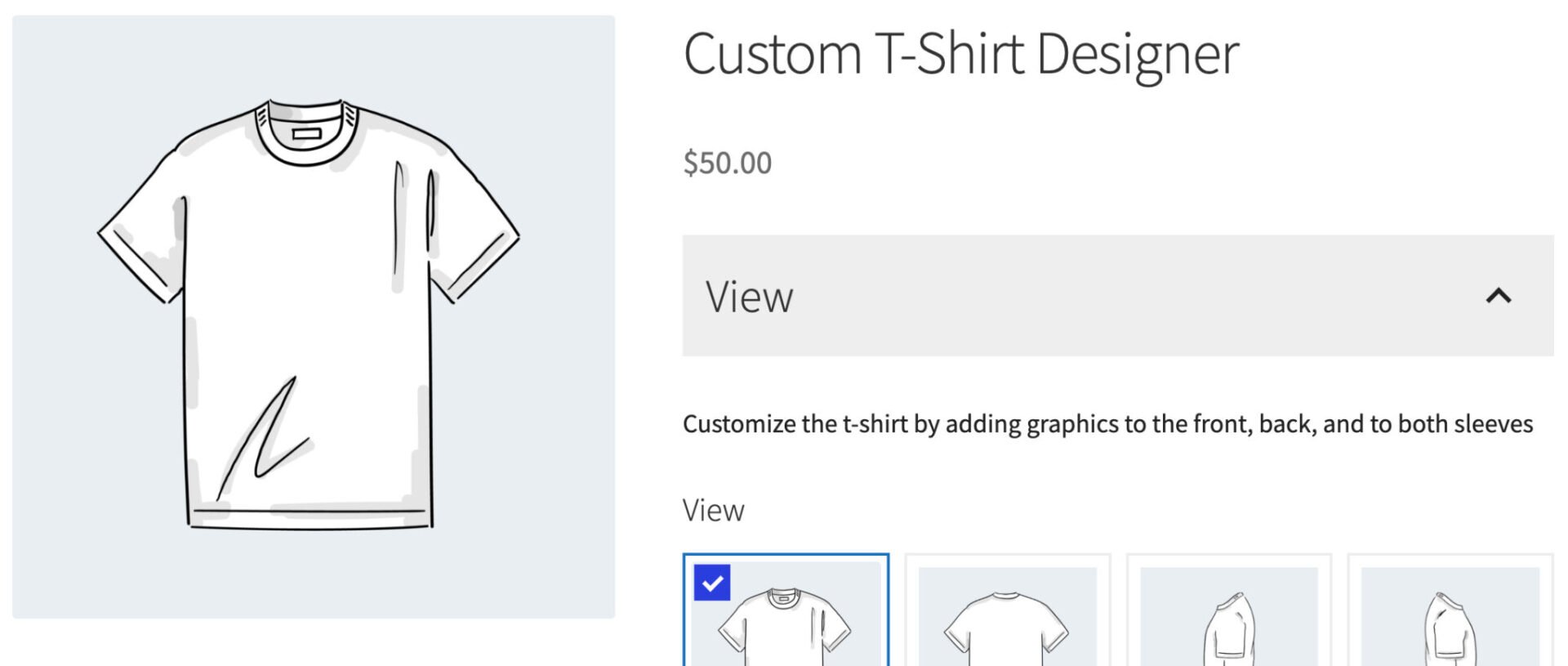
To use a different image for your shop page:
- Upload your alternate image to your media library. Copy the image URL when it has uploaded
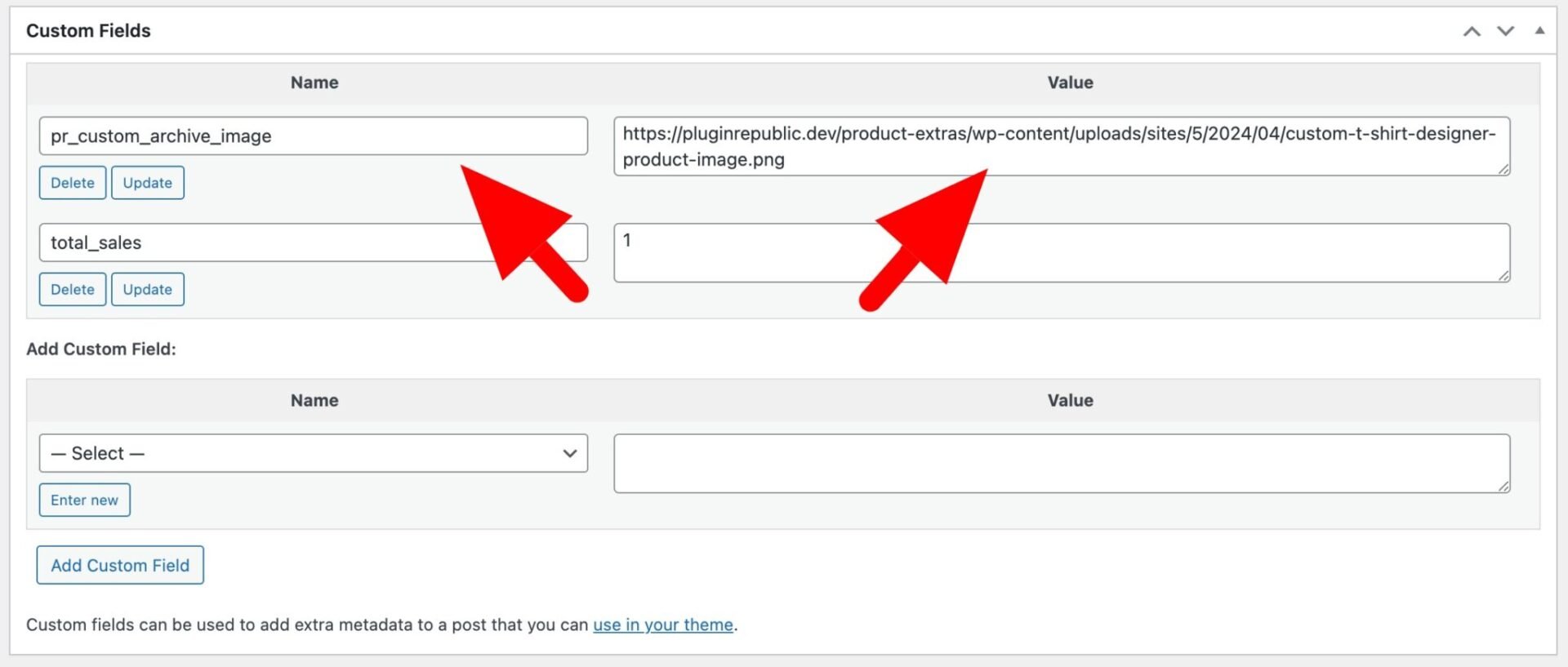
- Enter your product screen. In the ‘Custom Fields’ section, add a new custom field
- Define the custom field name as
pr_custom_archive_imageand paste the image URL in the value field
- Finally, add this snippet
This file contains hidden or bidirectional Unicode text that may be interpreted or compiled differently than what appears below. To review, open the file in an editor that reveals hidden Unicode characters.
Learn more about bidirectional Unicode characters
| <?php | |
| /** | |
| * If a product has an alternative featured image, display that on the archive page | |
| */ | |
| function pr_demo_product_get_image( $image, $product, $size, $attr, $placeholder ) { | |
| if( is_product() ) { | |
| // We're on a product page so just return the image | |
| return $image; | |
| } | |
| $product_id = $product->get_id(); | |
| // Check if there's a custom image for the archive | |
| $image_url = get_post_meta( $product_id, 'pr_custom_archive_image', true ); | |
| if( $image_url ) { | |
| $attachment_id = attachment_url_to_postid( $image_url ); | |
| $image = wp_get_attachment_image( $attachment_id, 'woocommerce_thumbnail' ); | |
| } | |
| return $image; | |
| } | |
| add_filter( 'woocommerce_product_get_image', 'pr_demo_product_get_image', 10, 5 ); |
Here’s how to add a snippet.