WooCommerce Wishlists Ultimate lets you add a ‘wishlist’ feature to your WooCommerce store. Customers will be able to add products to their wishlist and return to it later to make a purchase.
General settings
Go to WooCommerce > Settings > Wishlists. On the General tab, you can enter the following rules:
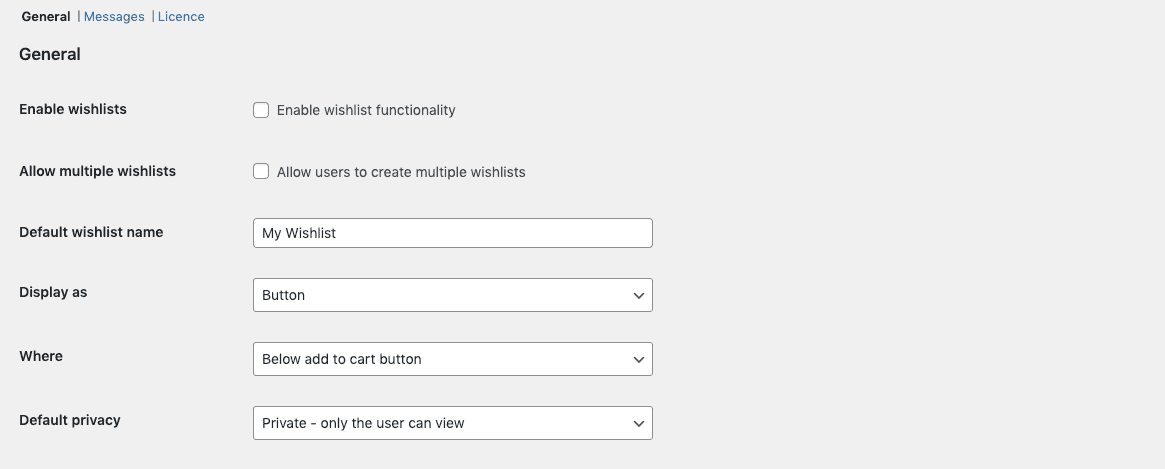
- Enable wishlists: Enable the wishlist functionality on your store
- Allow multiple wishlists: Allow users to create multiple wishlists. By default, users can only create a single wishlist
- Default wishlist name: This is the default name of the customer’s wishlist, used when creating a new wishlist
- Display as: You can choose whether to display the wishlist functionality as a button, Icon only or as a link.
- Where: You can either display the button/link/icon ‘Below add to cart button’ or ‘Next to add to cart button’.
- Default privacy: You have three privacy settings:
Private – only the user can view the wishlist
Public – anyone can view the wishlist
Shared – only users with the URL can view the wishlist
Message settings
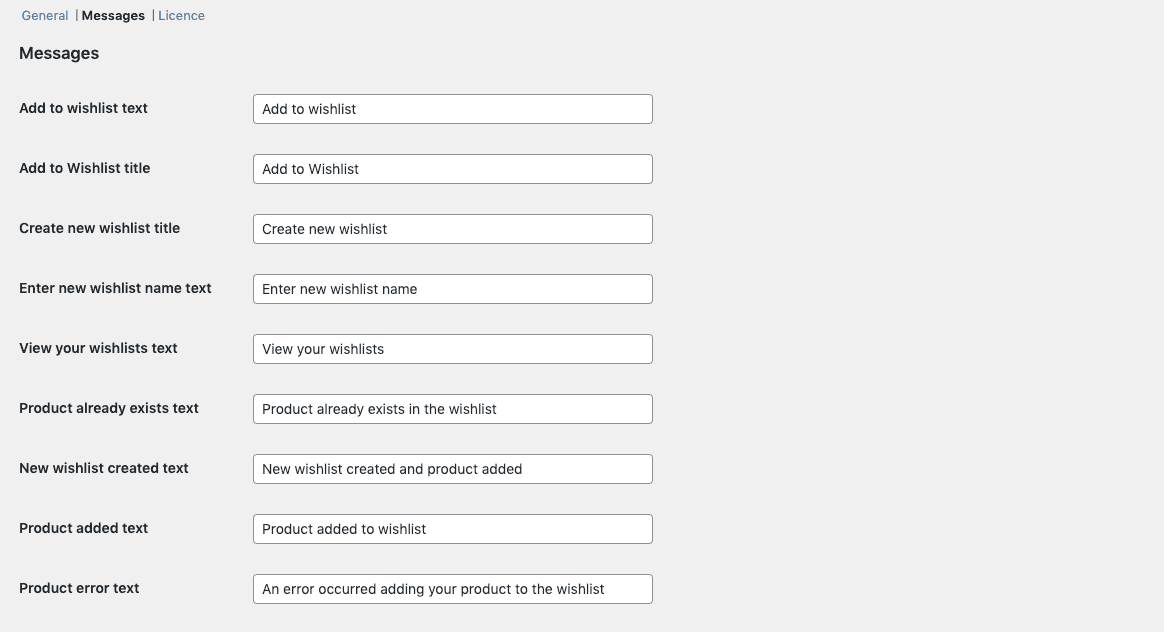
Wishlists Ultimate allows you to configure the messages displayed by the plugin.
Go to WooCommerce > Settings > Wishlists > Messages to update messages and labels.
Viewing wishlists
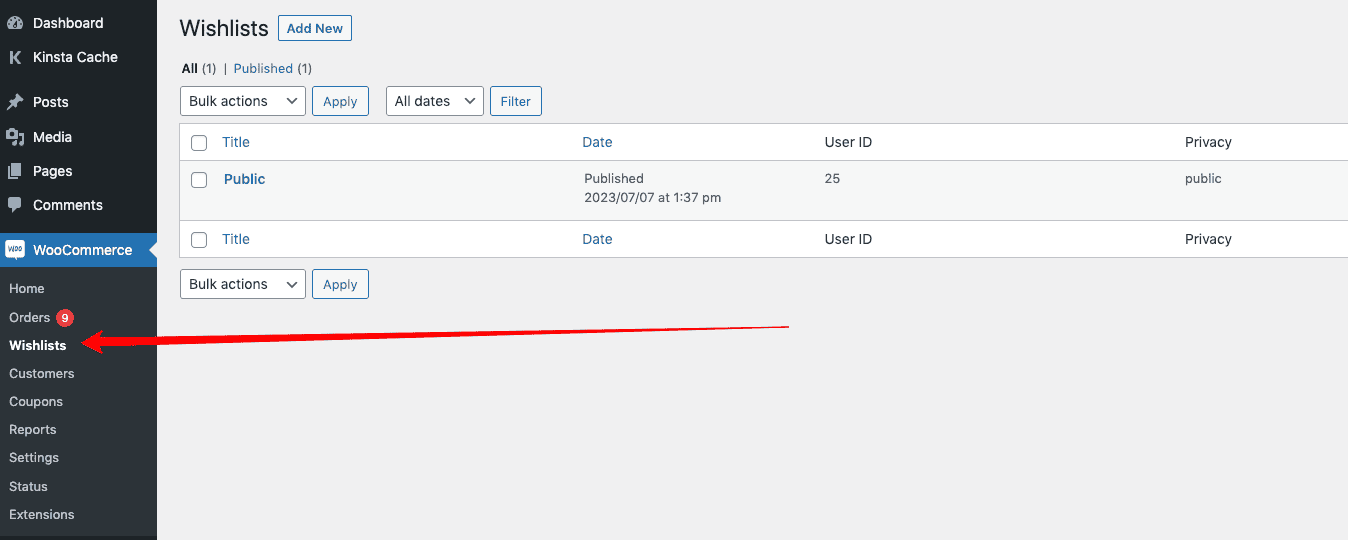
In the WordPress dashboard, you can access the wishlist, by going to WooCommerce > Wishlists. You’ll see a list of all wishlists created on the site.
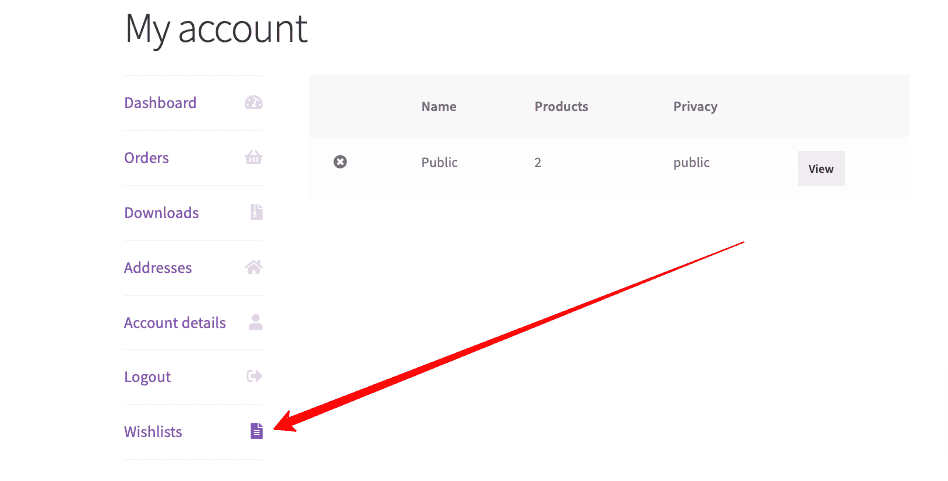
On the frontend, users can access their wishlist from their account page.
Maximum items per wishlist
You can limit the number of products in any wishlist. When a wishlist reaches its limit, customers can’t add more products to it and they see a message saying it’s full. This is ideal if you want to keep wishlists focused, such as for gift lists.
How to set a limit on a wishlist
To set a maximum number of items for a specific wishlist:
- Step #1: Go to WooCommerce > Wishlists in your WordPress dashboard.
- Step #2: Click the name of the wishlist you want to limit.
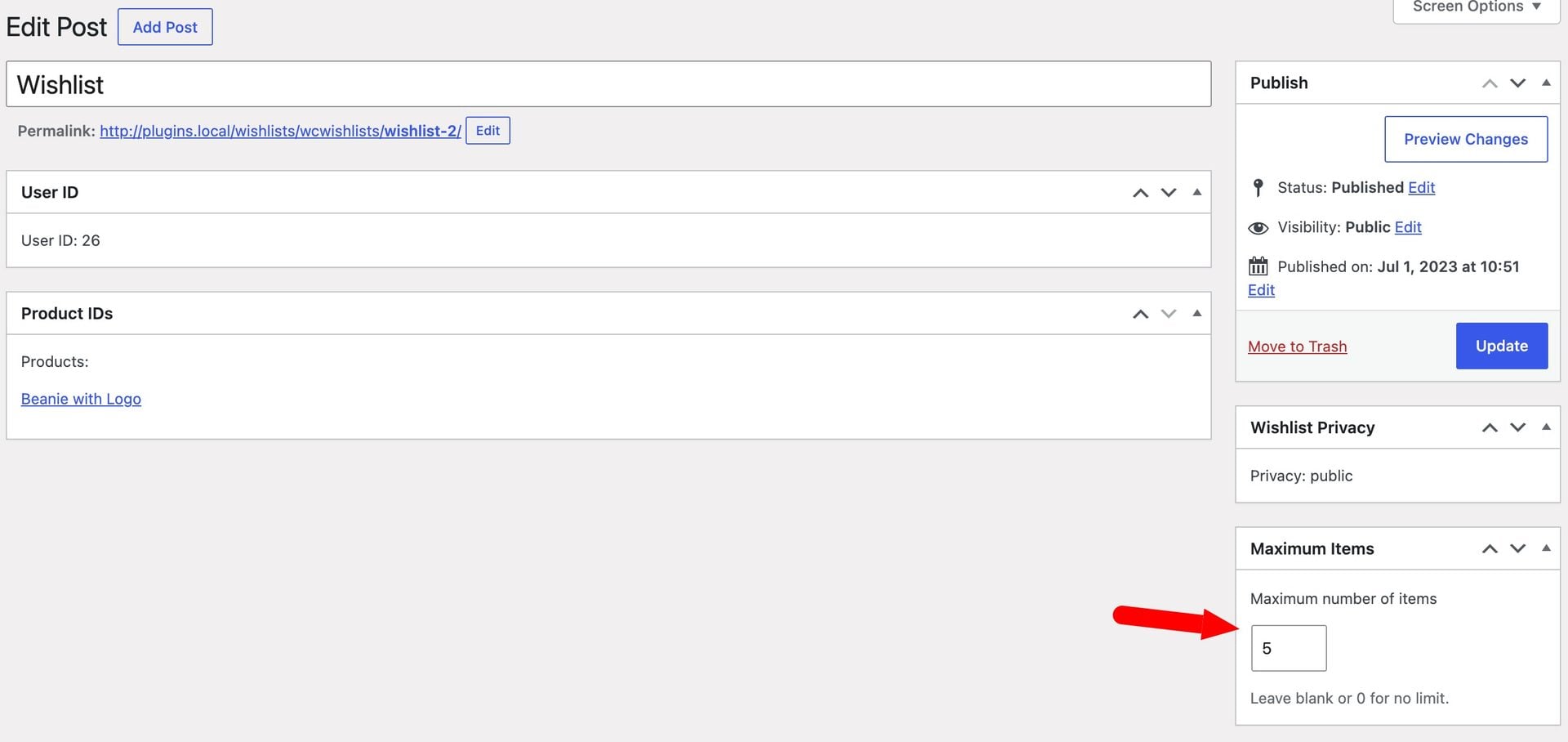
- Step #3: Enter a number in the ‘Maximum number of items’ field in the ‘Maximum Items’ box. The box is in the right-hand sidebar.
What happens when a wishlist is full?
Customers who try to add a product to a full wishlist see the ‘Wishlist full’ message, and the product isn’t added. This works the same way on single product pages and on shop and archive pages.
Customers can still create a new wishlist from the same popup and add the product to that instead. Products already in the wishlist stay put, even if you set the limit below the current number of items.