WooCommerce frequently bought together: recommend products to increase sales
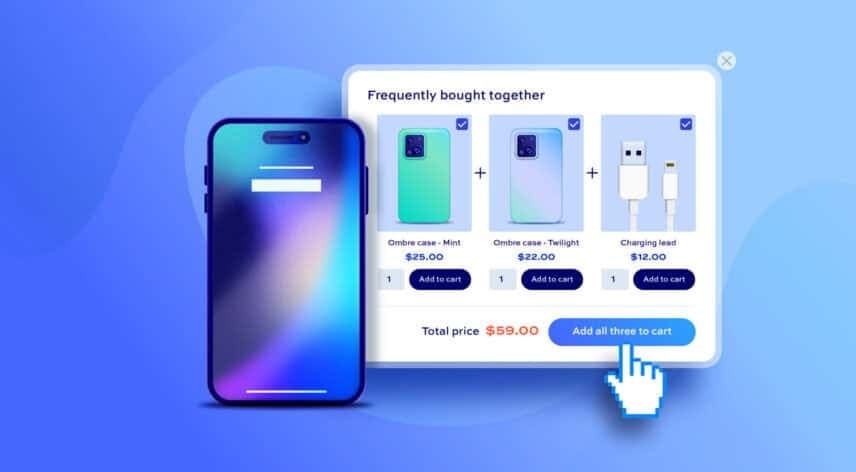
To add a “frequently bought together” section to your WooCommerce products, you can use the WooCommerce Product Add-Ons Ultimate plugin. It lets you recommend complementary products right above the ‘Add to Cart’ button, so shoppers can add them to their order in a single click.
This is the same technique Amazon uses to lift order values. According to this report, up to 35% of Amazon’s sales come from its recommendation engine.
After completing this tutorial:
- Your customers will be able to:
- Add recommended products to their cart straight from the product page
- Choose how many of each recommended product they want
- As the store owner, you’ll be able to:
- Handpick exactly which products to recommend
- Pull in a whole category of accessories automatically
- Offer a discount to encourage the extra purchase
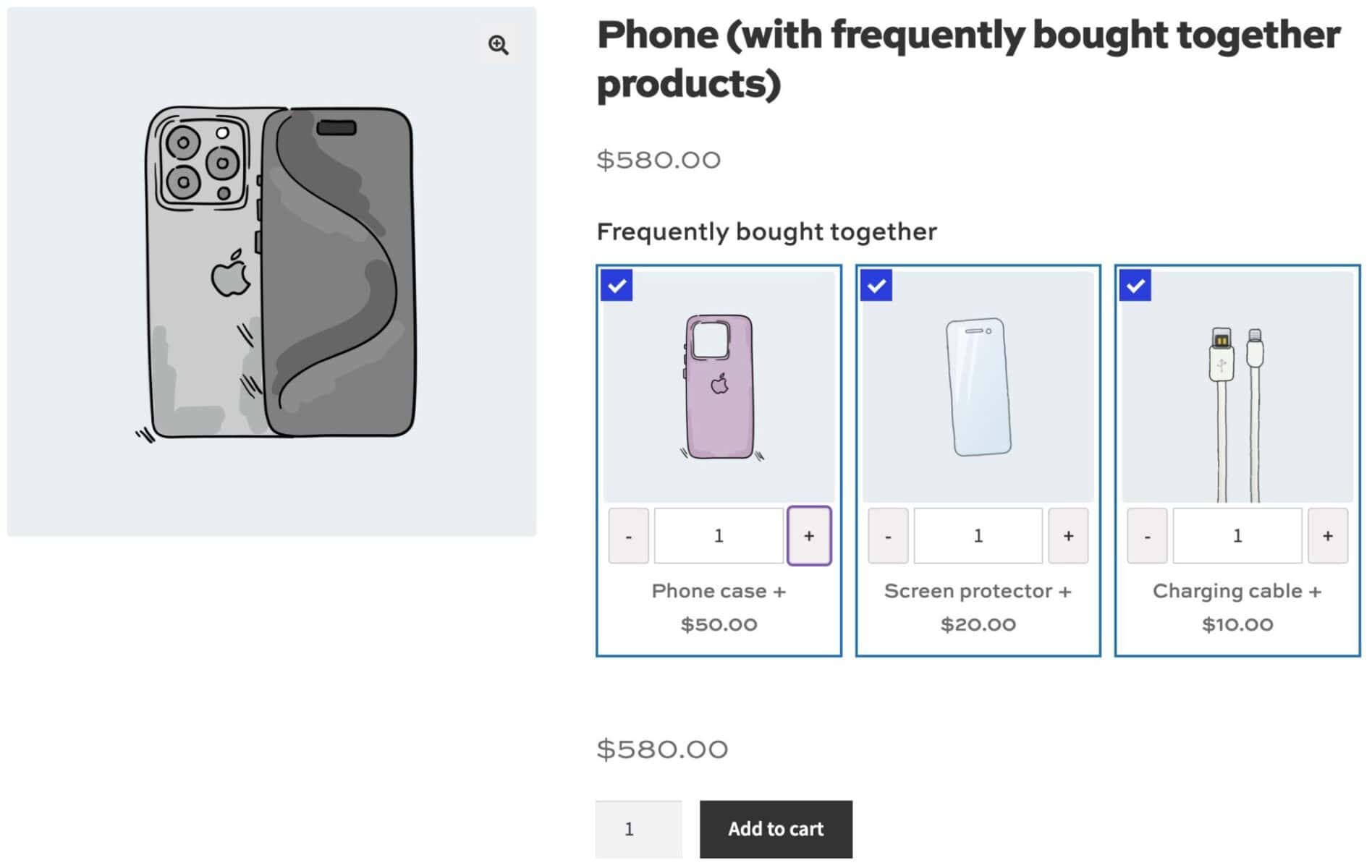
What is “frequently bought together”?
“Frequently bought together” is a section on a product page that recommends complementary products alongside the item the customer is viewing. You’ve almost certainly seen one on Amazon.
As an example, on a product page for a phone, Amazon offers a case and a charger as well as the phone itself. The recommendations sit next to the main product, and the customer can add one or more of them to their order.
The result is a bigger basket. Instead of leaving with just the phone, the customer leaves with the phone, a case, and a screen protector.
Does WooCommerce have frequently bought together built in?
No, WooCommerce doesn’t include a “frequently bought together” feature out of the box. Its closest native features are upsells and cross-sells, which work differently and display in less effective positions.
To add a true “frequently bought together” section, where you choose the recommendations and they appear right above the ‘Add to Cart’ button, you’ll need a plugin. We’ll use Product Add-Ons Ultimate for the rest of this tutorial.
WooCommerce Product Add-Ons Ultimate
Customize products with extra fields and options
How does frequently bought together compare to upsells, cross-sells, and related products?
WooCommerce has three native features that serve a similar purpose. Each one differs from frequently bought together in an important way.
WooCommerce upsells
Upsells are products you recommend instead of the one the customer is viewing, usually a more profitable version. They appear on the product page, normally under the main content, often under a ‘You may also like’ heading.
There’s a full guide to WooCommerce upsells if you’d like to find out more.
WooCommerce cross-sells
Cross-sells are complementary products, which makes them the closest native equivalent to “frequently bought together”. The catch is that they only appear on the cart page, after the customer has already decided what to buy.
Our guide to WooCommerce cross-sells walks through how to set them up.
WooCommerce related products
Related products are generated automatically by WooCommerce based on shared categories and tags. You can’t choose them, so there’s no guarantee they’re a good match for the product being viewed.
For more control, see our guide to WooCommerce recommended products.
Why is the frequently bought together method more effective?
The method in this article gives you three advantages over the native features:
- You set the exact recommendations yourself, because you know your products best
- The recommendations appear right above the ‘Add to Cart’ button, the best place to catch a customer before they buy. Most “frequently bought together” plugins drop the section at the bottom of the page instead
- You can also offer a discount to nudge customers into taking the whole set. Together, that means higher conversion rates, an easy way to move slow stock, and a simple route to promote new products.
Examples of frequently bought together pairings
You can use “frequently bought together” in almost any store that sells more than one product. You just need to pair the main product with items the customer is likely to need anyway.
| If a customer is buying… | Recommend… |
|---|---|
| A phone | A case, screen protector, and charger |
| A camera | A memory card, spare battery, and camera bag |
| Running shoes | Running socks, insoles, and a water bottle |
| A coffee machine | Coffee beans, descaler, and a milk frother |
| A laptop | A sleeve, wireless mouse, and USB-C hub |
| A dress | Matching shoes, a clutch bag, and jewelry |
In the tutorial below, we’ll use a phone as the main product and recommend a category of accessories alongside it.
How do you add frequently bought together to WooCommerce?
You’ll need WooCommerce Product Add-Ons Ultimate, which lets you use other products as add-on fields. It’s compatible with all themes, page builders, and WooCommerce payment gateways.
In this tutorial, we’ll assume you already have WordPress and WooCommerce installed and ready to go.
Products field vs Product Categories field: which should you use?
Product Add-Ons Ultimate gives you two field types for adding recommendations.
The ‘Products’ field lets you handpick specific individual products. It’s best when the pairing is exact and fixed, for example one phone paired with one matching case.
The ‘Product Categories’ field pulls in every product from a category you choose. It’s a better default for “frequently bought together”, because you set it up once and any new product you add to that category appears as a recommendation automatically, with no need to edit the phone product again.
We’ll use the ‘Product Categories’ field with an ‘iPhone Accessories’ category. You can read more about both field types in the product fields documentation.
How to set up frequently bought together in WooCommerce
Here’s how to easily add a ‘frequently bought products’ section to your WooCommerce product page.
- Install and activate Product Add-Ons Ultimate
Upload the plugin under Plugins > Add New, then enter your license key.
- Create or edit your main product
Open the product you want to attach recommendations to, such as a phone.
- Add a group and field
In the ‘Product Add-Ons’ tab, click ‘Add Group’, then ‘Add Field’
- Set the field type to ‘Product Categories
This pulls in every product from a category you choose.
- Select your category
On the ‘Products’ tab, select the product category
- Choose the layout and quantity options.
Decide how to present the recommended products and any restrictions on quantity
- Publish your product
Your recommendations will now appear above the ‘Add to Cart’ button
Let’s look at each step in detail.
Step #1: Install and activate Product Add-Ons Ultimate
Once you’ve purchased Product Add-Ons Ultimate:
- Download the plugin’s zip file by clicking on the link on your order confirmation screen or in your welcome email. You’ll receive the email automatically a few seconds after you’ve completed the purchase
- Go to Plugins > Add New in your WordPress dashboard
- Click on the ‘Upload Plugin’ button
- Drag and drop the plugin’s downloaded zip file into the ‘Choose File’ area and click ‘Install Now’
- When the plugin has uploaded, click the ‘Activate Now’ button
- Go to WooCommerce > Settings > Product Add-Ons and enter your license key
With the plugin activated, you’re ready to add recommendations to a product.
Step #2: Create or edit your main product
Add a new product, or open an existing one, in the same way you would any other WooCommerce product. For this tutorial, that’s our phone.
Go to Products > Add New, give the product a title, description, and price, then scroll down to the ‘Product data’ section.
You now have your main product ready to attach recommendations to.
Step #3: Add a group and field in the ‘Product Add-Ons’ tab
Click the ‘Product Add-Ons’ tab in the ‘Product data’ section. Click ‘Add Group’, then ‘Add Field’.
Give the field a title that customers will see on the front end, such as “Frequently bought together” or “You might also like”.
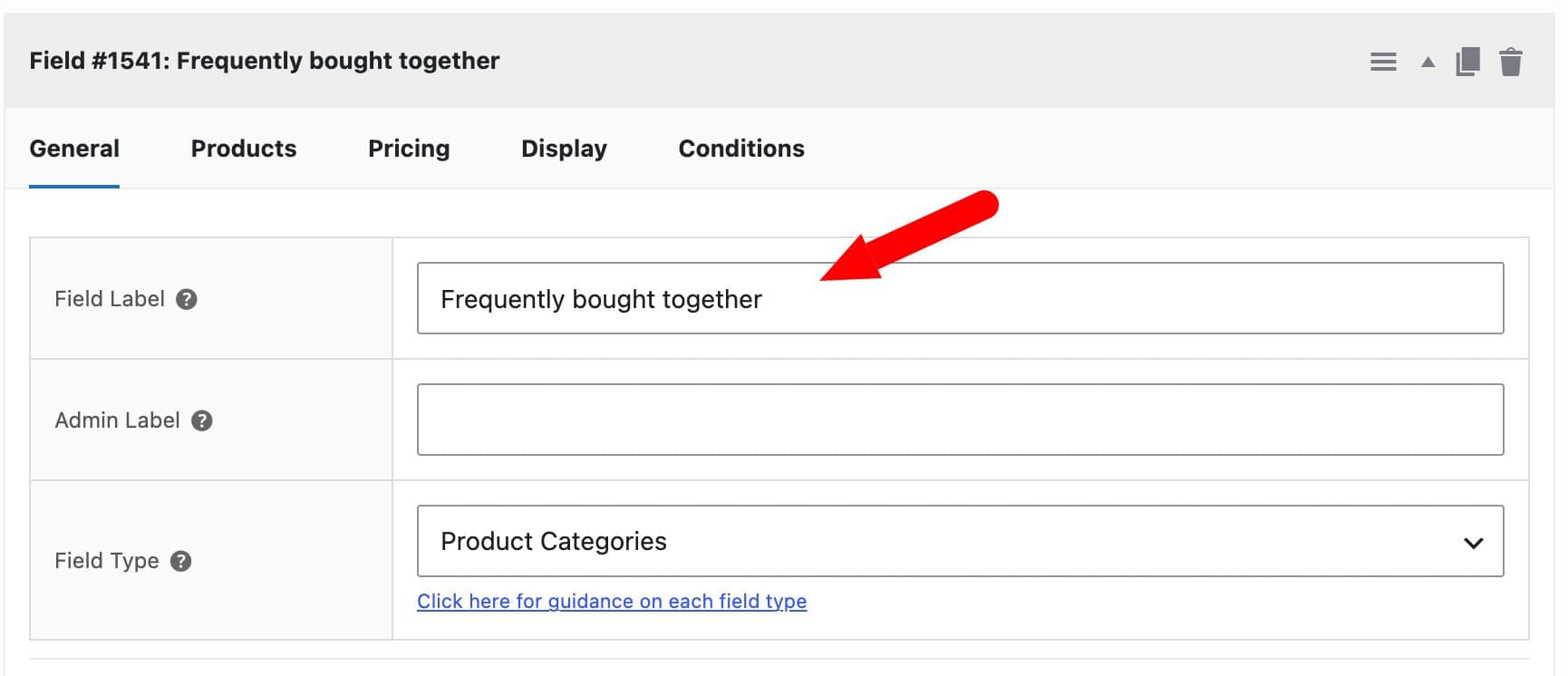
You now have an empty add-on field ready to configure.
Step #4: Set the field type to ‘Product Categories’
Choose ‘Product Categories’ from the ‘Field Type’ dropdown. This tells the plugin to display every product from a category you specify, rather than products you select one by one.
When you select this field type, an extra ‘Products’ tab appears so you can configure the recommendations.
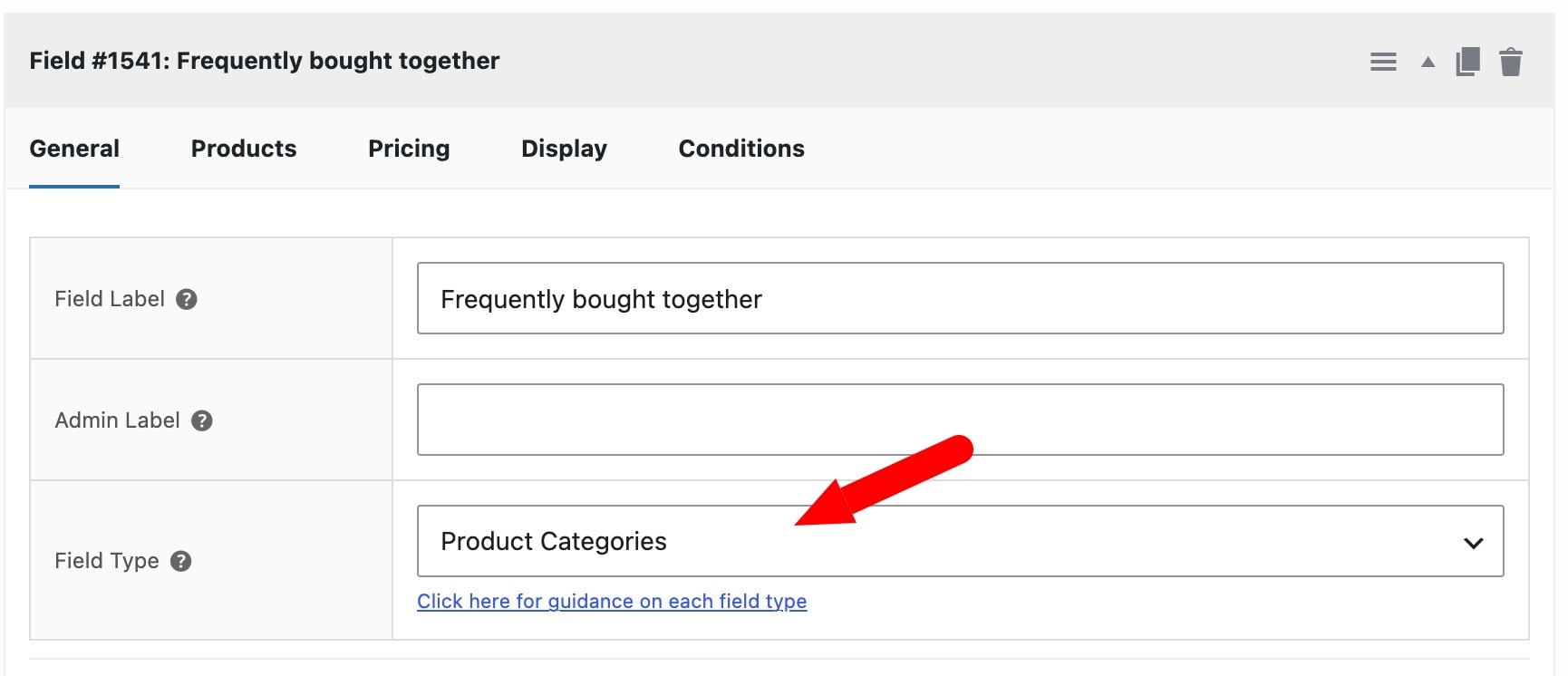
Your field is now set to pull in a whole category of accessories.
Step #5: Enter your accessories category on the ‘Products’ tab
Click the ‘Products’ tab, then enter ‘iPhone Accessories’ in the ‘Product Categories’ field. You can add more than one category if you’d like to recommend products from several.
Every product in the ‘iPhone Accessories’ category will now appear as a recommendation above the ‘Add to Cart’ button on your phone product.
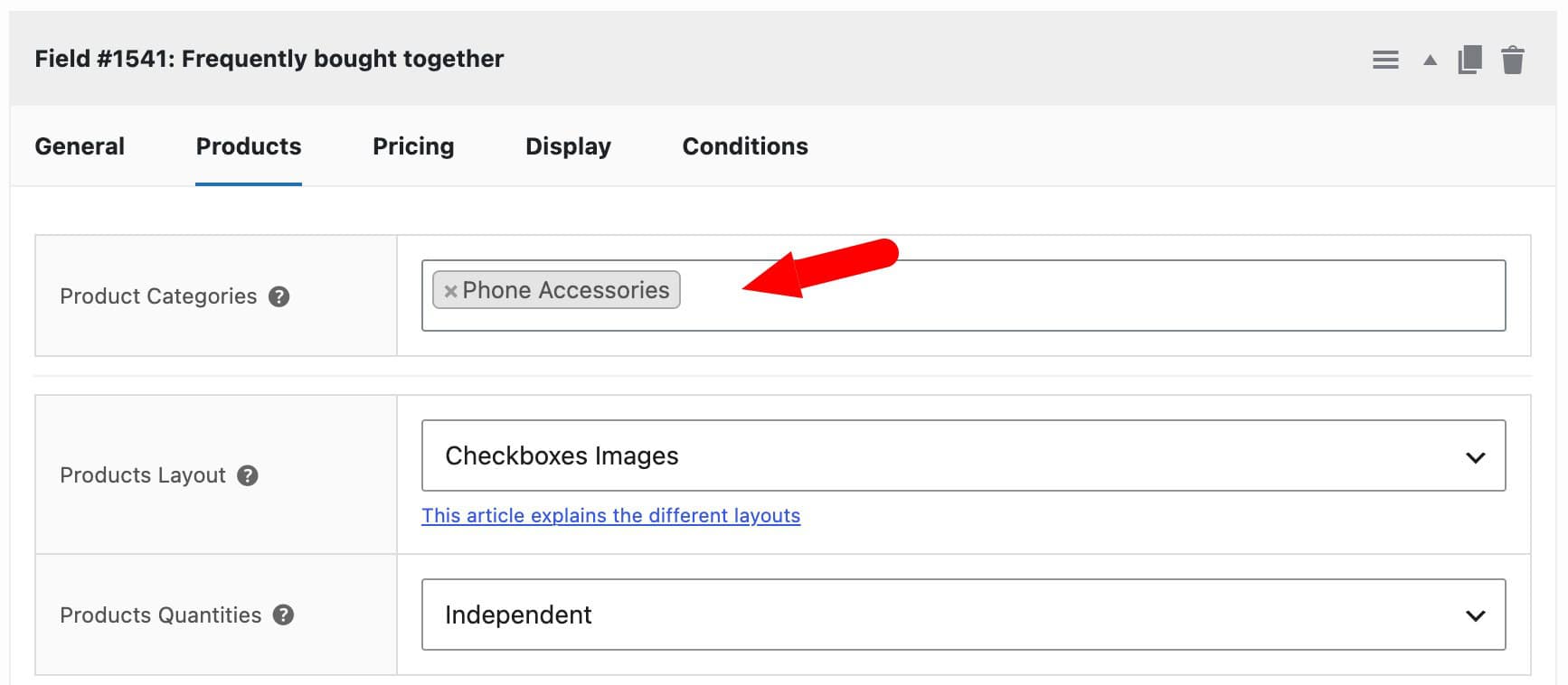
Using the Product Categories field type makes your frequently bought together recommendations easier to maintain. If you add a new case or charger to that category later, then it will show up automatically without you touching the phone product.
Step #6: Choose the layout and quantity options
Set ‘Products Layout’ to ‘Checkboxes Images’ so each accessory displays with its thumbnail and the customer can select more than one.
Set ‘Products Quantities’ to ‘Independent’. This lets the customer buy any number of each accessory, regardless of how many phones they’re ordering, which suits “frequently bought together” well. The alternatives are ‘Linked’, which matches the accessory quantity to the main product, and ‘One-only’, which limits the customer to a single unit.
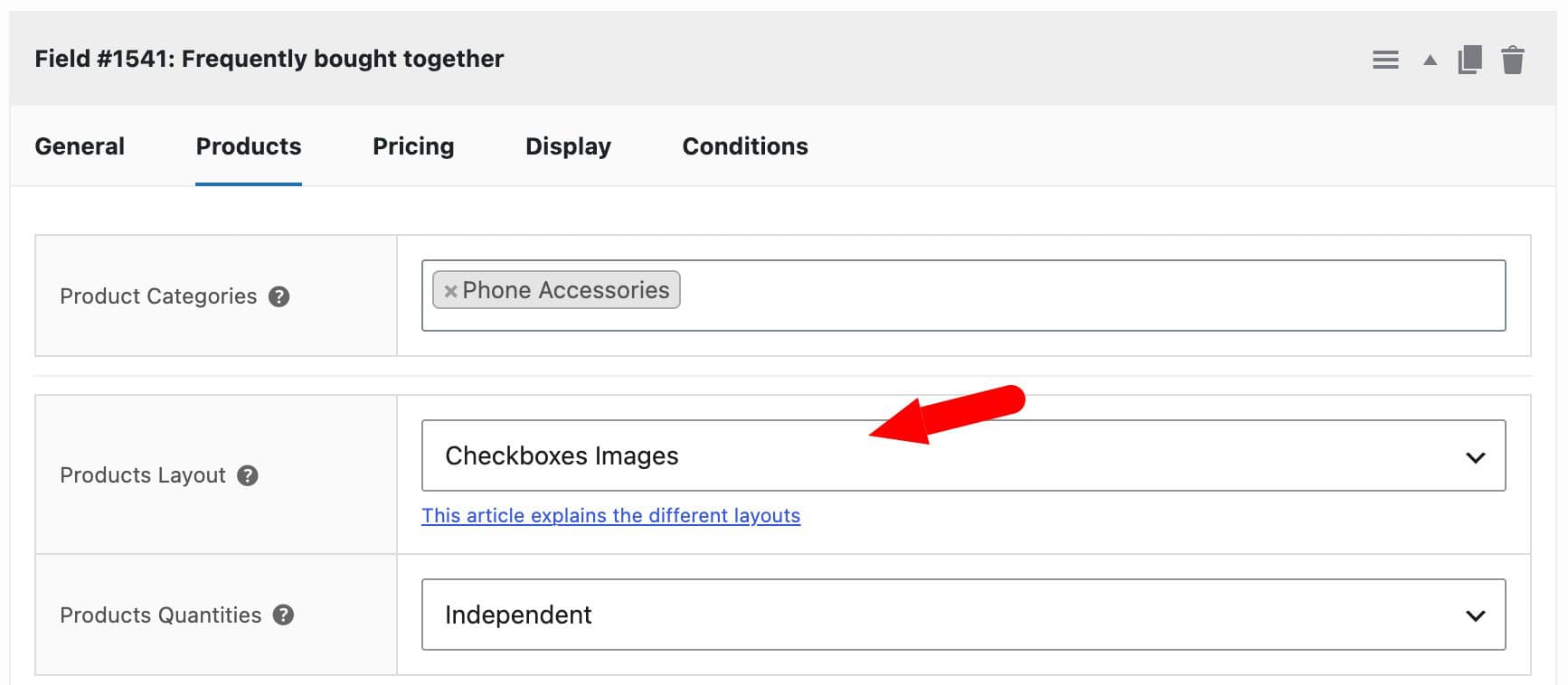
Your recommendations now display as selectable image swatches with flexible quantities.
Step #7: Publish your product
Publish your product. You now have a phone product with a “frequently bought together” section above the ‘Add to Cart’ button, where customers can add any of your iPhone accessories to their order in one click.
There’s a demo product here so you can see the finished result. Now let’s look at a couple of ways to get more from your recommendations.
Bonus #1: Add a discount incentive to your recommended products
You can encourage customers to take the whole set by offering a discount on the recommended products. Click the ‘Pricing’ tab on your field.
Enter the value of the discount in the ‘Discount’ field, then choose the type, percentage or fixed, in the ‘Discount Type’ field. The price of each recommended product adjusts accordingly on the front end.
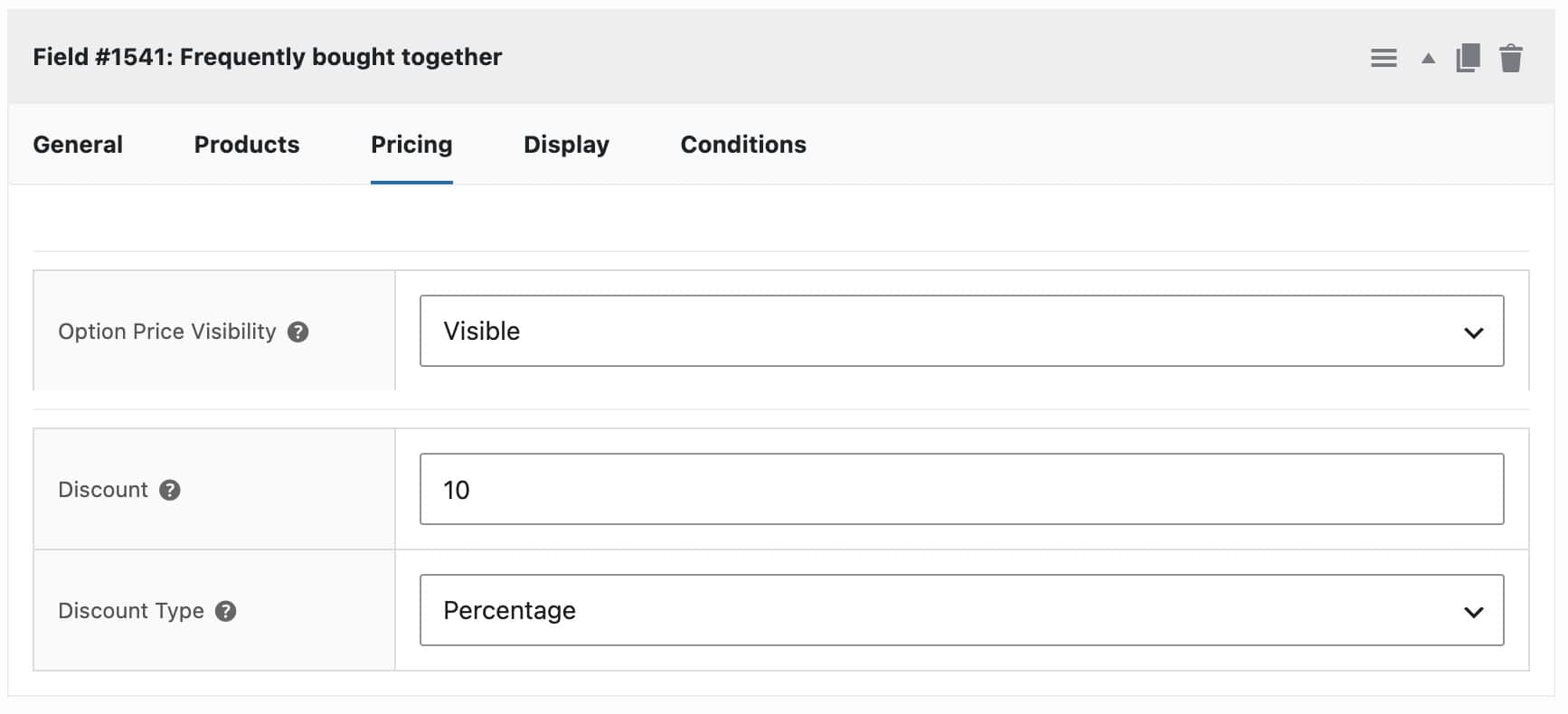
A small discount on a case or screen protector is often all it takes to turn a single-item order into a three-item one.
Bonus #2: Apply the same recommendations across all products
If you want the same recommendations on lots of products, you don’t have to edit each one. Go to Product Add-Ons > Global Add-ons and create your field there instead.
You can apply your “frequently bought together” section to all products, to specific products, or to products in specific categories. That makes it easy to show, say, the same set of accessories across every phone in your store.
Related articles
Depending on what you’re trying to build, these guides may also help:
- WooCommerce product bundles
- WooCommerce gift boxes
- WooCommerce “complete the look” products
- Adding multiple products to the cart in WooCommerce
- WooCommerce order bump
WooCommerce frequently bought together – recap
In this article, we looked at how to add a “frequently bought together” section to your WooCommerce products, where you choose the recommendations and they appear right above the ‘Add to Cart’ button. We compared the method to native upsells and cross-sells, and walked through a phone example using a category of accessories.
To set up your own version, you’ll need WooCommerce Product Add-Ons Ultimate, which lets you recommend individual products or whole categories and offer a discount to encourage the extra purchase.
WooCommerce Product Add-Ons Ultimate
Customize products with extra fields and options
Product Add-Ons Ultimate is compatible with all themes and page builders, including Woodmart and Shoptimizer, and page builders like Elementor and Divi. If you have any questions, our world-class support team is on hand to help. And it’s backed by a 14-day money-back guarantee, so you can try it risk-free.

I’d tried other plugins before, but this was the best solution for me. A really great service and great technical support. The response of support was very fast and exact what I need for my project. The whole process was simple and very professional. Congratulations on your work!