In the WooCommerce Product Add-Ons Ultimate plugin date fields allow you to add datepicker input fields to your WooCommerce product. There’s a demo product here.
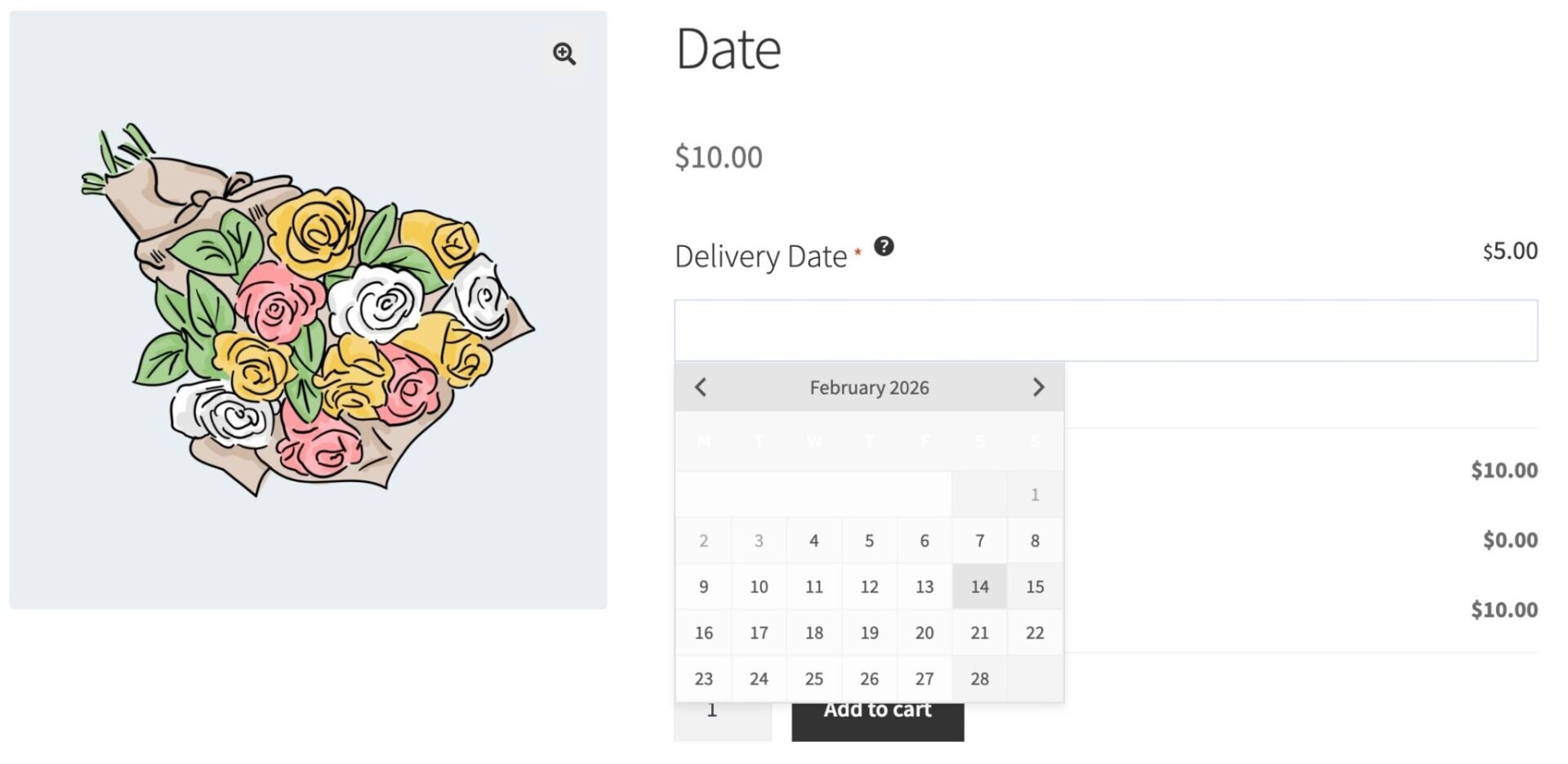
To add a date field, just choose ‘Date’ from the ‘Field Type’ dropdown list.
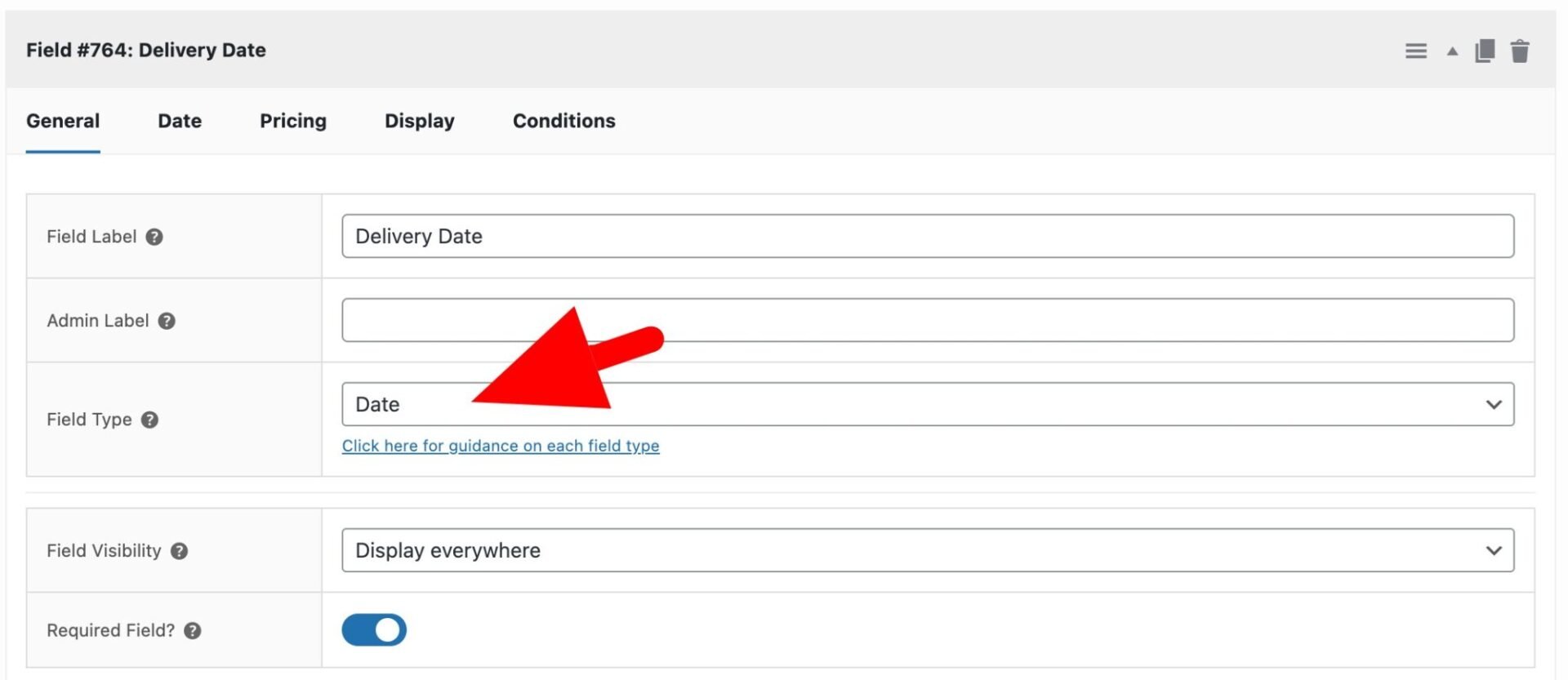
Date fields have some specific settings. Click on the ‘Date’ tab to update them.
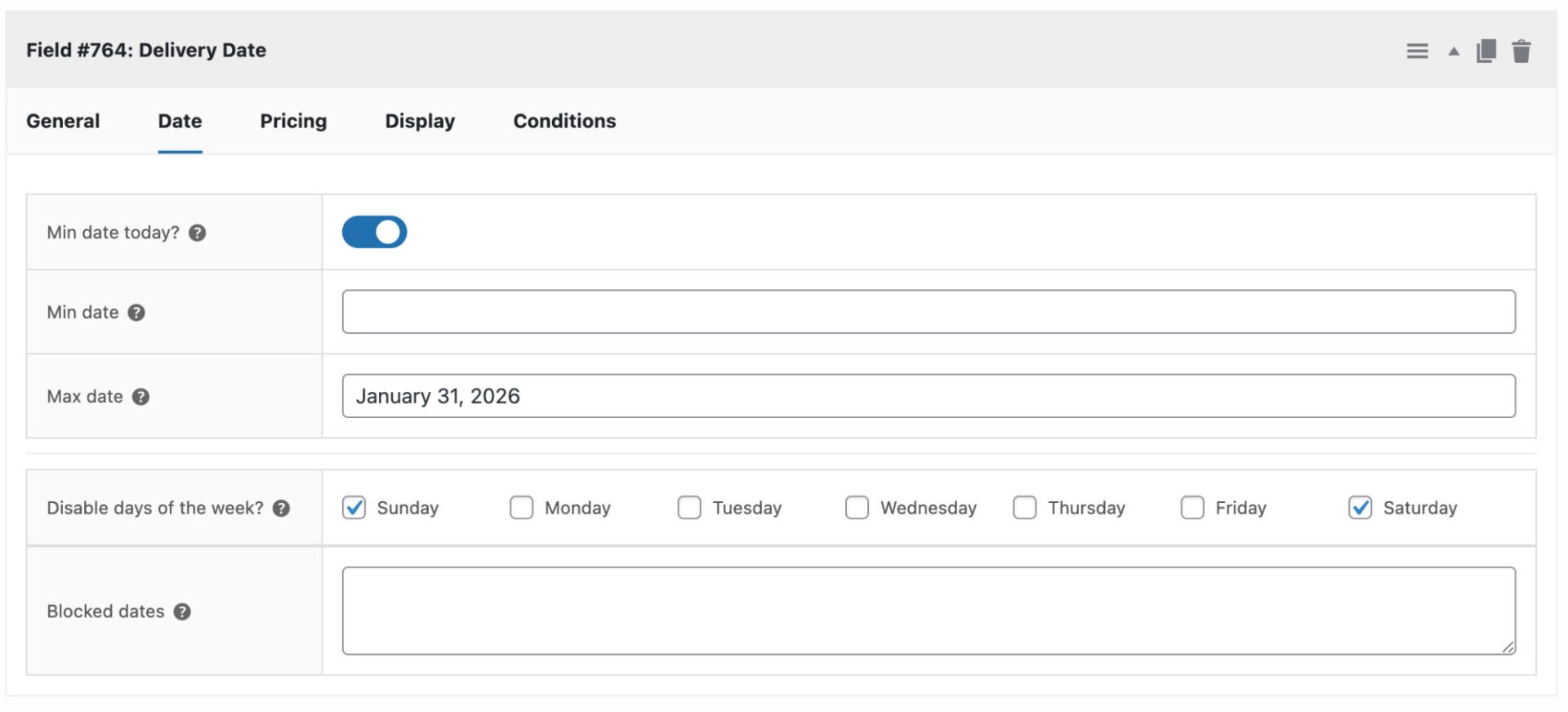
Min date today
Enable this option to prevent dates earlier than today’s date from being selected.
Min date
Enter the earliest possible date that a user can select.
Max date
Enter the latest possible date that a user can select.
There are further settings which are not enabled by default. To enable these, go to WooCommerce > Settings > Product Add-Ons > Date.
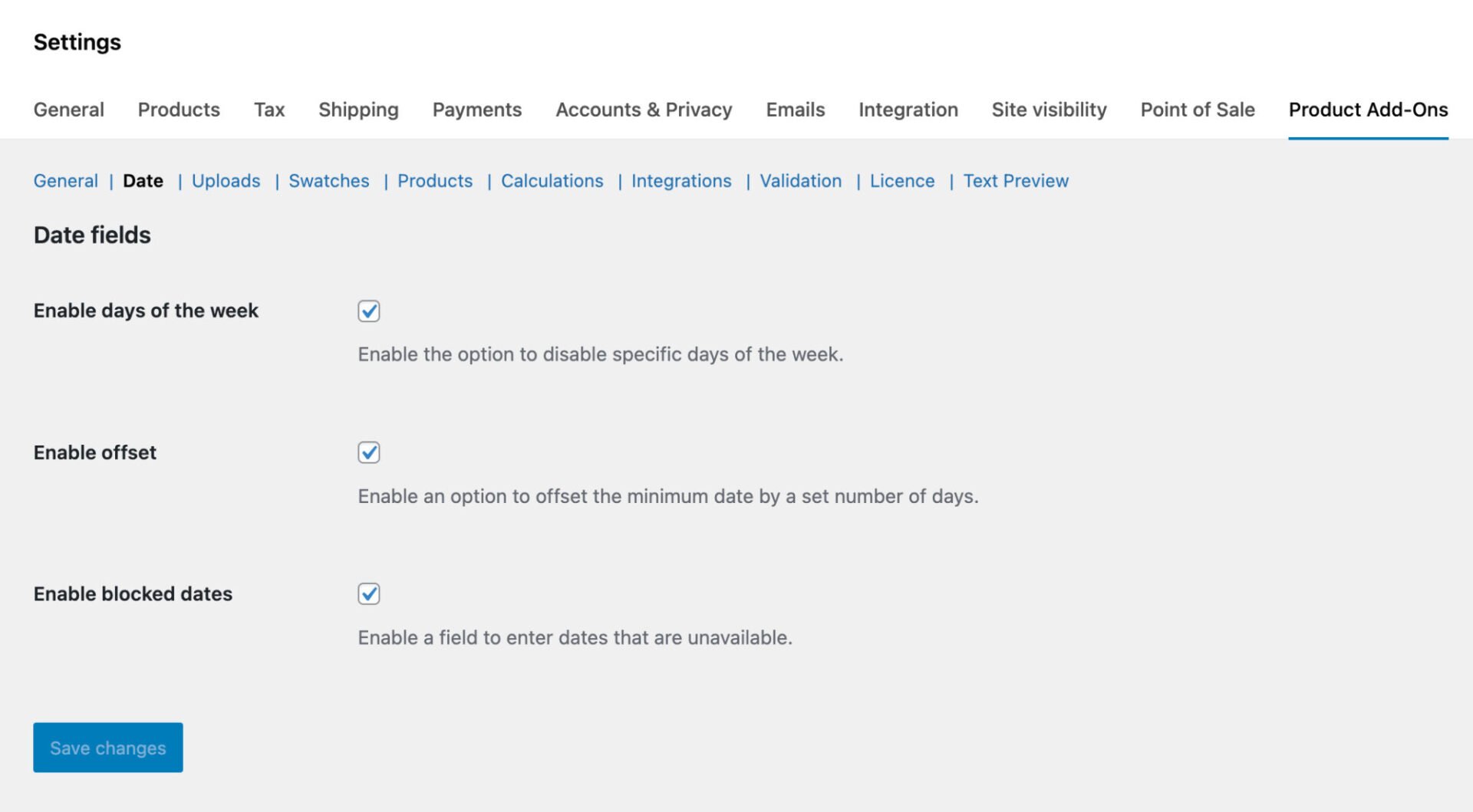
Disable days of the week
Select the ‘Enable days of the week‘ option to include a checkbox for each day of the week as part of the date field settings. You can then check any days that you wish to be disabled in the calendar.
Enable offset
Select ‘Enable offset‘ to add a field where you can specify a number of days that cannot be selected, starting from the current date. So if you want to prevent users from selecting a date within 3 days of the current date, enter 3 in this field.
Enabled blocked dates
Select ‘Enable blocked dates‘ to add a field where where you can enter a comma-separated list of dates that will be disabled in the calendar. Dates should be entered in the YYYY-MM-DD format, e.g. 2021-09-07,2021-09-08 etc
Filter date field parameters
You can filter the parameters for your date fields, provided you’re familiar with the jQuery Datepicker: https://jqueryui.com/datepicker/.
Set minimum date based on current time
Maybe you want to set the minimum date two days into the future if the current time has passed a certain point. In the example below, the minimum date is tomorrow, unless the current time is later than 6pm.
| <?php | |
| /** | |
| * Set the minimum date differently if we're currently later than 14:00 | |
| */ | |
| function prefix_date_field_params_after_time( $params, $item ) { | |
| // Check if the time is later than 14:00 | |
| if( date( 'H' ) >= 14 ) { | |
| $min_date = 2; | |
| } else { | |
| $min_date = 1; | |
| } | |
| $params[] = '"minDate" : ' . $min_date; | |
| return $params; | |
| } | |
| add_filter( 'pewc_filter_date_field_params', 'prefix_date_field_params_after_time', 10, 2 ); |
Here’s how to add the snippet to your site.
Add select fields for month and year to date field
You can make it easier for users to select a month and year by enabling select fields for each parameter.
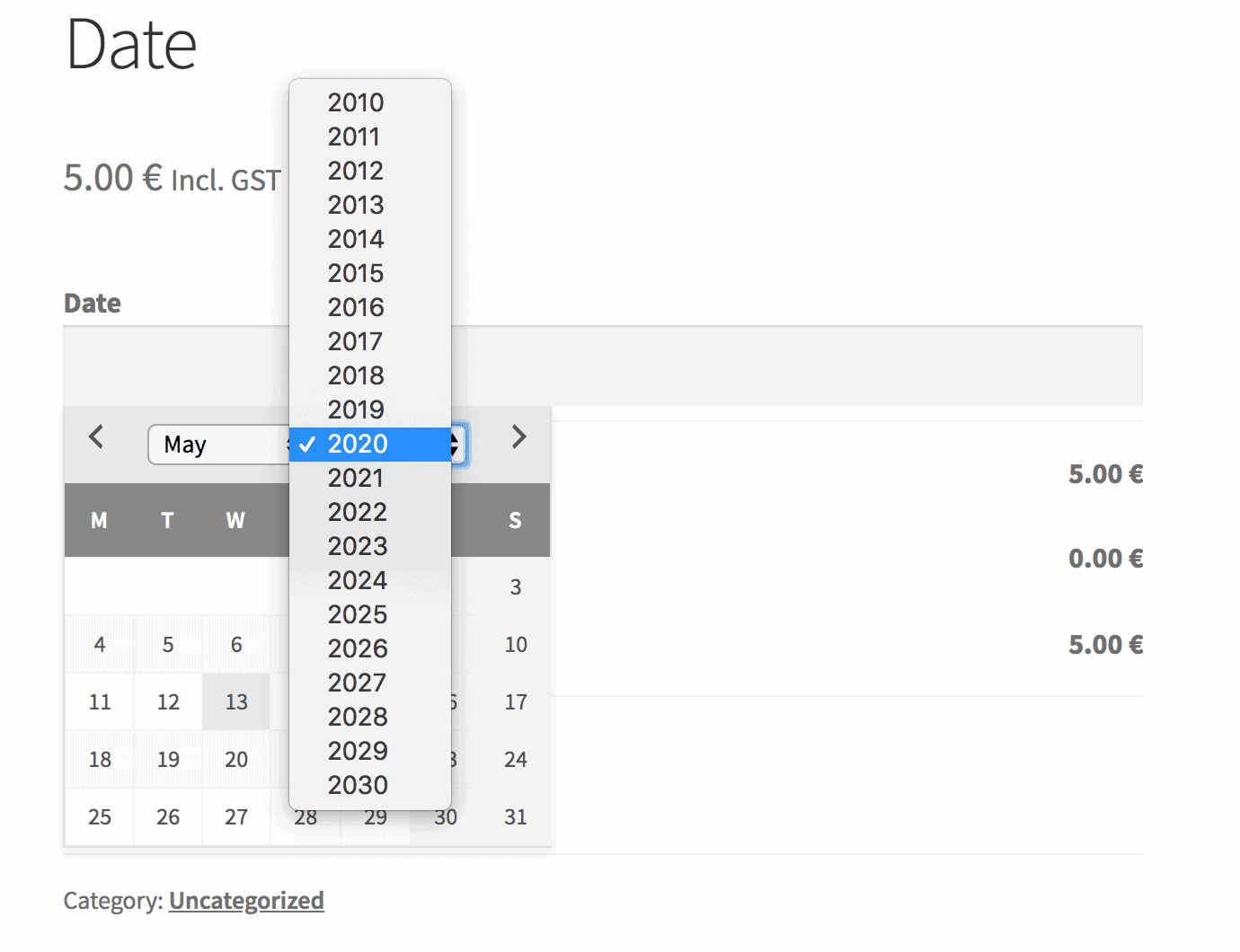
Just add the following snippet:
| <?php | |
| /** | |
| * Add select fields for month and year to date field | |
| */ | |
| function prefix_date_field_params_change_month( $params, $item ) { | |
| $params[] = "changeMonth: true"; | |
| $params[] = "changeYear: true"; | |
| $params[] = "yearRange: '1900:2030'"; | |
| return $params; | |
| } | |
| add_filter( 'pewc_filter_date_field_params', 'prefix_date_field_params_change_month', 10, 2 ); |
Here’s how to add a snippet.
Difference between two dates
See this article for how to get the number of days difference between two date fields.