WooCommerce shortcodes: a complete list (+ how to use them)
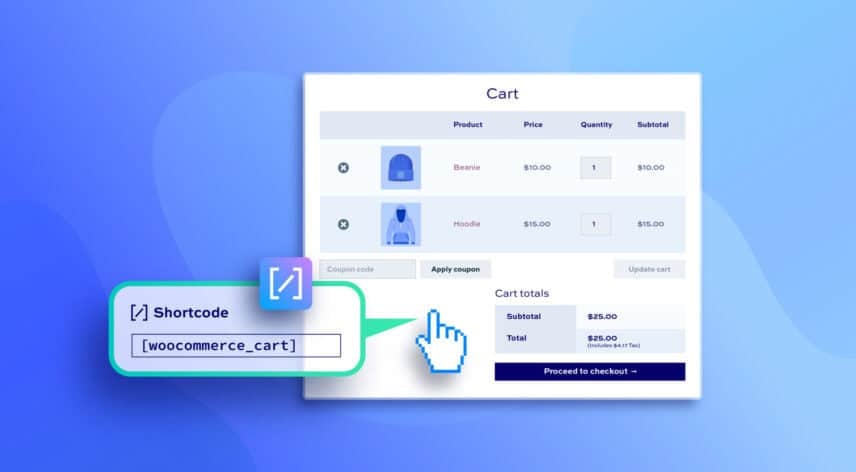
Understanding WooCommerce shortcodes helps you maximize your store’s effectiveness. These small code snippets can be added to WordPress pages or posts to display specific WooCommerce elements without coding.
This article looks at what shortcodes are, how to use them, and provides you with a list of every single WooCommerce shortcode. We also look at a couple of bonus shortcodes added by WooCommerce plugins.
What are shortcodes?
Shortcodes in WordPress and WooCommerce are small, bracketed snippets of text – like [gallery] or [woocommerce_cart] – that act as placeholders for dynamic content.
When WordPress processes a page or post, it detects these snippets and replaces them with more complex functionality, layouts, or interactive elements. Instead of having to write PHP or embed complex HTML structures, a shortcode allows you to insert features with a simple, readable command.
In WordPress, shortcodes are commonly used to display galleries, embed media or insert plugin-generated content. WooCommerce extends this concept by providing its own library of shortcodes, allowing store owners to display products, categories, carts, checkout pages, account information or custom product grids anywhere on the site – even outside the typical store pages.
So you can create landing pages, marketing pages or blog posts that incorporate product listings without additional coding.
Benefits
Shortcodes offer several advantages. They:
- Are beginner-friendly, allowing non-technical users to embed complex functionality with minimal effort
- Significantly speed up content creation because users don’t need to build layouts manually or work with theme templates
- Enhance flexibility, enabling features like product displays or forms to be placed virtually anywhere content is allowed
- Offer a structured way for developers to expose plugin functionality to editors without granting access to PHP templates
Drawbacks
However, shortcodes do come with some limitations. They:
- Aren’t visual – so if you’re editing with the block editor, you won’t see the shortcode rendered in the back end
- Can create “lock-in,” meaning content becomes dependent on the plugin that provides the shortcode. If the plugin is deactivated, the page may display raw shortcode text instead of content, breaking layout and user experience
- Lack discoverability – users must know the shortcode’s name and parameters – and they can become cluttered or hard to manage when many parameters are included within a single shortcode
Overall, though, shortcodes are an easy way of adding complex content without knowing any code.
How to use shortcodes in WooCommerce
WooCommerce shortcodes can be added in several places throughout your site. The most common location is within page and post content, but they can also be inserted into widget areas, such as sidebars or footers, using the Text or Custom HTML widget.
Many page builders, including Elementor, Divi and Beaver Builder, also provide shortcode modules or blocks, allowing you to place WooCommerce features within custom-designed templates.
Shortcode syntax and structure – what does it all mean?
The syntax or structure of a shortcode is simple: the shortcode is enclosed within square brackets and may include parameters to modify its output. The square brackets are a signal to WordPress that a shortcode is being employed; everything inside the square brackets tells WordPress specific information about the shortcode.
For example, the basic structure looks like this:
[shortcode_name attribute="value"]
The shortcode_name element identifies the shortcode and tells WooCommerce what content to display. Some shortcodes only consist of this element.
However, many shortcodes also allow for additional attributes or parameters. Parameters are optional settings you can use to modify the shortcode output. You add parameters after the shortcode_name element after the shortcode_name element within the same square brackets. Each parameter has an attribute and a value, separated by an equal sign. Typically the value is enclosed in double-quote marks, like attribute="value".
WooCommerce shortcodes often support multiple attributes, such as columns, orderby, ids, or limit, enabling fine-grained control. A typical example might be:
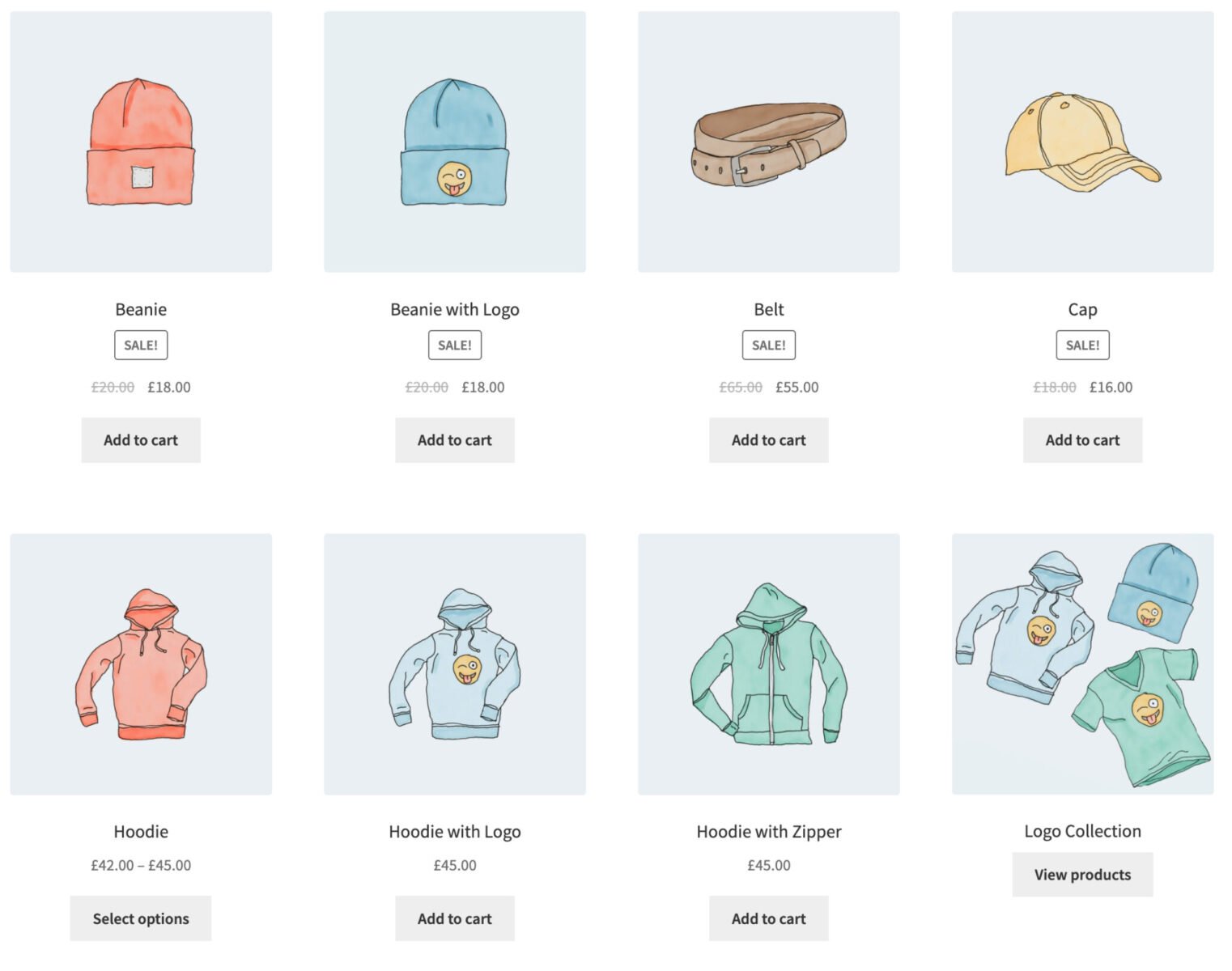
[products limit="8" columns="4" orderby="date" order="DESC"]
This will display a grid of 8 products in 4 columns, displaying the most recently published first.
How to add a shortcode
Adding shortcodes in the WordPress block editor (Gutenberg) is straightforward. You can use the dedicated Shortcode block, paste your shortcode into the block, and WordPress will render the output on the front end.
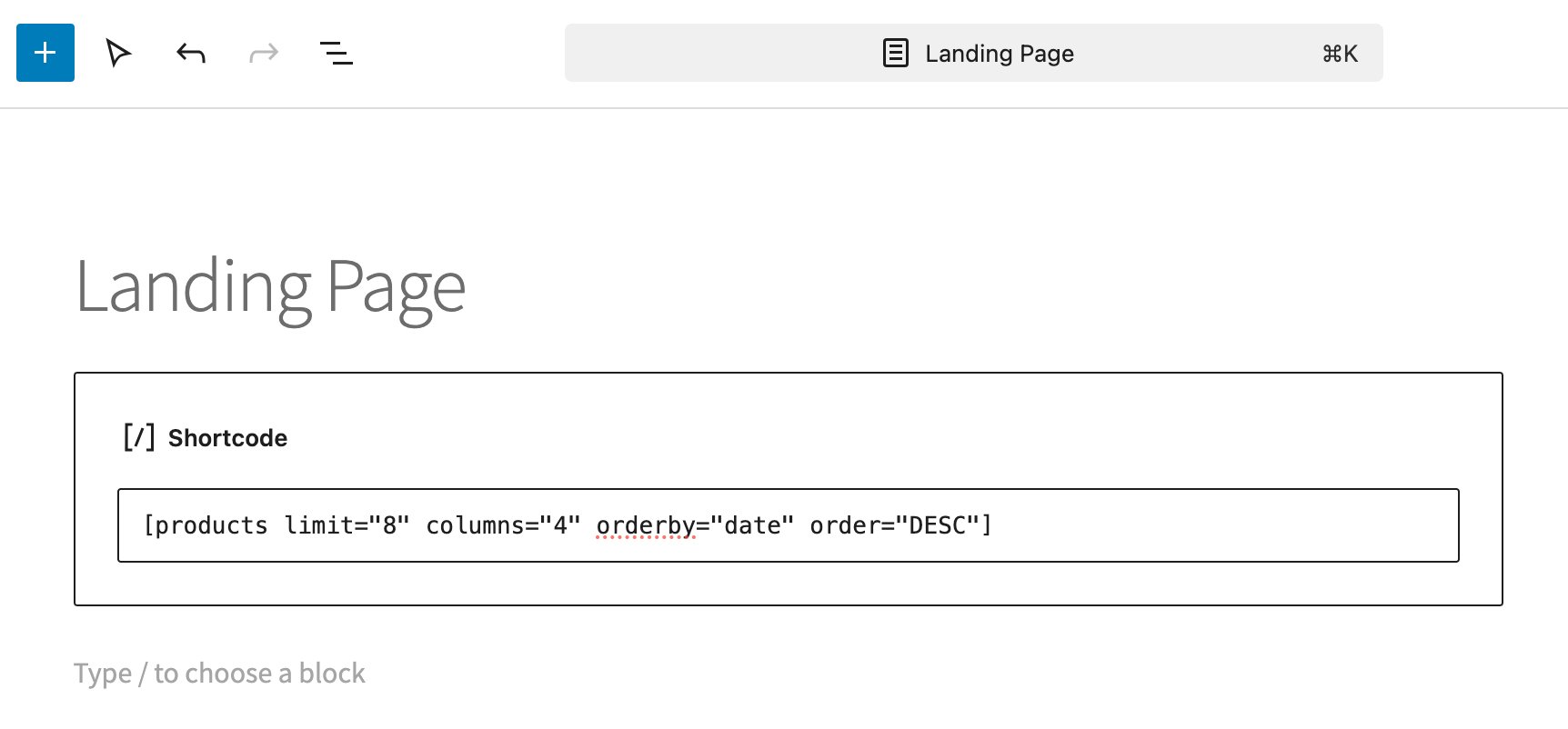
Alternatively, some Woo blocks now replicate shortcode functionality with visual configuration options, but the shortcode block remains the most flexible for full shortcode support.
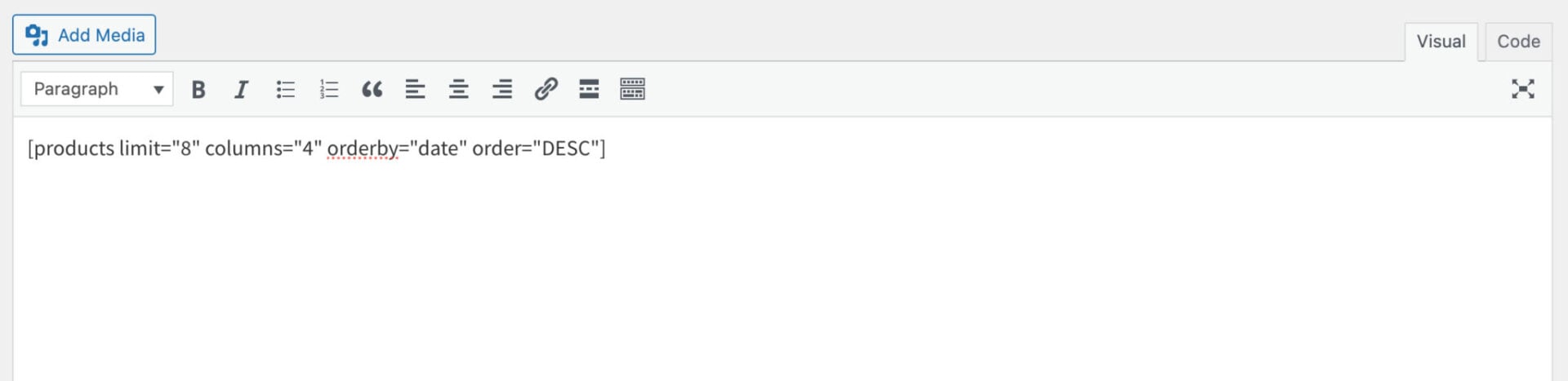
If you’re using the Classic Editor, you can insert shortcodes directly into the main content area. In Visual mode, simply paste the shortcode where you want the WooCommerce element to appear. In Text mode, you can place the shortcode among your HTML for more precise control. Either way, WordPress will interpret the shortcode when the page loads.
How to add a WooCommerce shortcode to a post or page
To add a shortcode to any WordPress post or page, open the editor and choose where you want the shortcode to appear.
In the Block Editor, insert a Shortcode block, then paste the shortcode – such as [products] or [woocommerce_cart] – into the block. You can also use a Paragraph block, as most shortcodes work inside regular text blocks.
In the Classic Editor, simply paste the shortcode directly into the content editor where you want it displayed. Once published or updated, WooCommerce automatically processes the shortcode and replaces it with the corresponding dynamic content on the front end.
How to add a shortcode to a product page
It’s also possible to add shortcodes to specific WooCommerce product pages. For example, if you wanted to add a shortcode to the WooCommerce product description field:
- Open the product in the WordPress dashboard and scroll to either the Product Short Description or Product Description editor
- Paste your shortcode directly into the text area
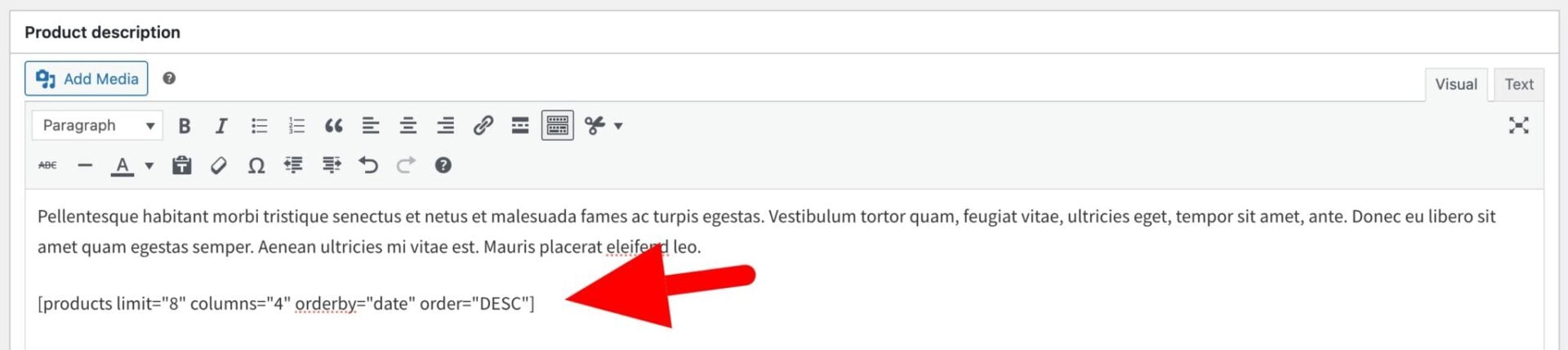
This allows you to display dynamic content like product grids, messages or custom functions inside product descriptions.
How to add a shortcode to a widget (e.g. in the sidebar or footer)
Let’s look at how you can add the cart to a widget in your site’s sidebar or footer – for example, maybe you’d like to display the cart in the footer on every page.
To add the [woocommerce_cart] shortcode to a footer widget:
- Go to Appearance → Widgets in the WordPress dashboard
- Add a Shortcode widget to your footer area
- Paste the shortcode directly into the widget’s content field
- Save the widget
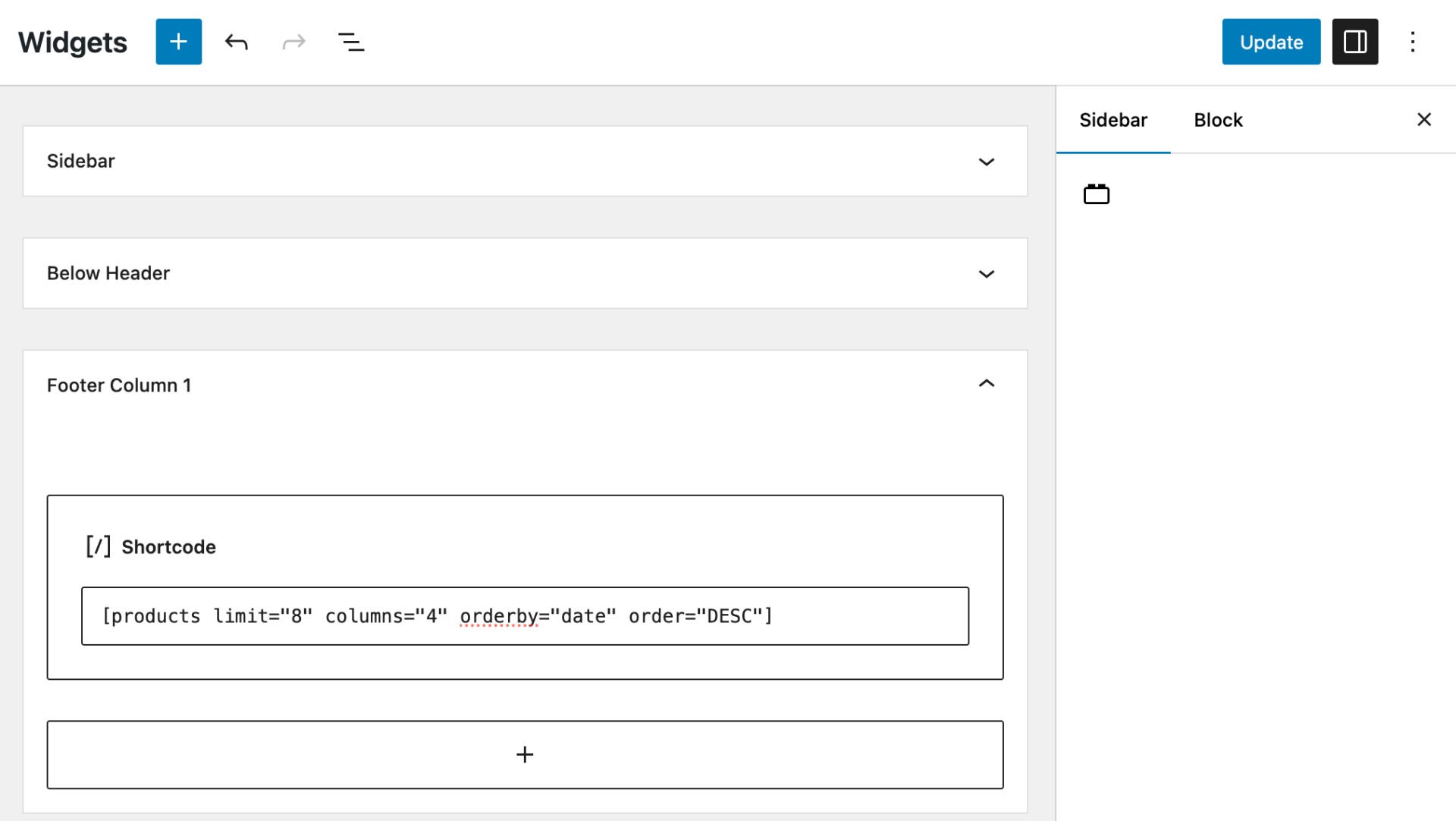
WordPress will automatically render the cart content on the front end. This approach is useful for showing a compact cart view in your site’s footer, making it easier for customers to access their cart from any page.
How to add a WooCommerce shortcode programmatically
One of the main advantages of shortcodes is that they’re easy and you don’t need to use any code. However, if you want to add the same shortcode in multiple places and you’re comfortable with some basic coding, then adding shortcodes programmatically is fairly straightforward using the do_shortcode command and an action hook.
So, for instance, if you’d like to display a grid of products from the same product category on every product page, you can do so easily with this snippet.
| <?php | |
| /** | |
| * Add a shortcode using a hook | |
| */ | |
| function pr_add_shortcode_after_product_summary() { | |
| echo do_shortcode( '[product_category category="hoodies" columns="3" limit="6"]' ); | |
| } | |
| add_action( 'woocommerce_after_single_product_summary', 'pr_add_shortcode_after_product_summary', 5 ); |
The do_shortcode command just allows you to insert your shortcode into template files. Just enclose your shortcode in single quote marks.
What is the difference between shortcodes and blocks?
Shortcodes and blocks both allow you to display products and ecommerce functionality, but they work in fundamentally different ways and suit different types of workflow.
As we’ve seen above, shortcodes are convenient, flexible and work reliably within the block editor as well as the classic editor, in widget areas and with most page builders.
However, shortcodes offer no visual editing interface. You can’t see the results until you preview the page, and styling might require custom CSS. In some ways, it could be said that shortcodes are gradually becoming a legacy approach as WooCommerce focuses more on block-based design.
WooCommerce blocks, on the other hand, are Gutenberg-native components designed for the WordPress block editor. They provide a visual, drag-and-drop interface that shows a live preview of products, grids, filters, checkout elements and more.
For some users, blocks make page building faster and more intuitive, and many blocks include built-in styling controls. Yet blocks also have their limitations: they might be considered less flexible in certain advanced layouts and occasionally they have fewer configuration options compared with shortcode parameters.
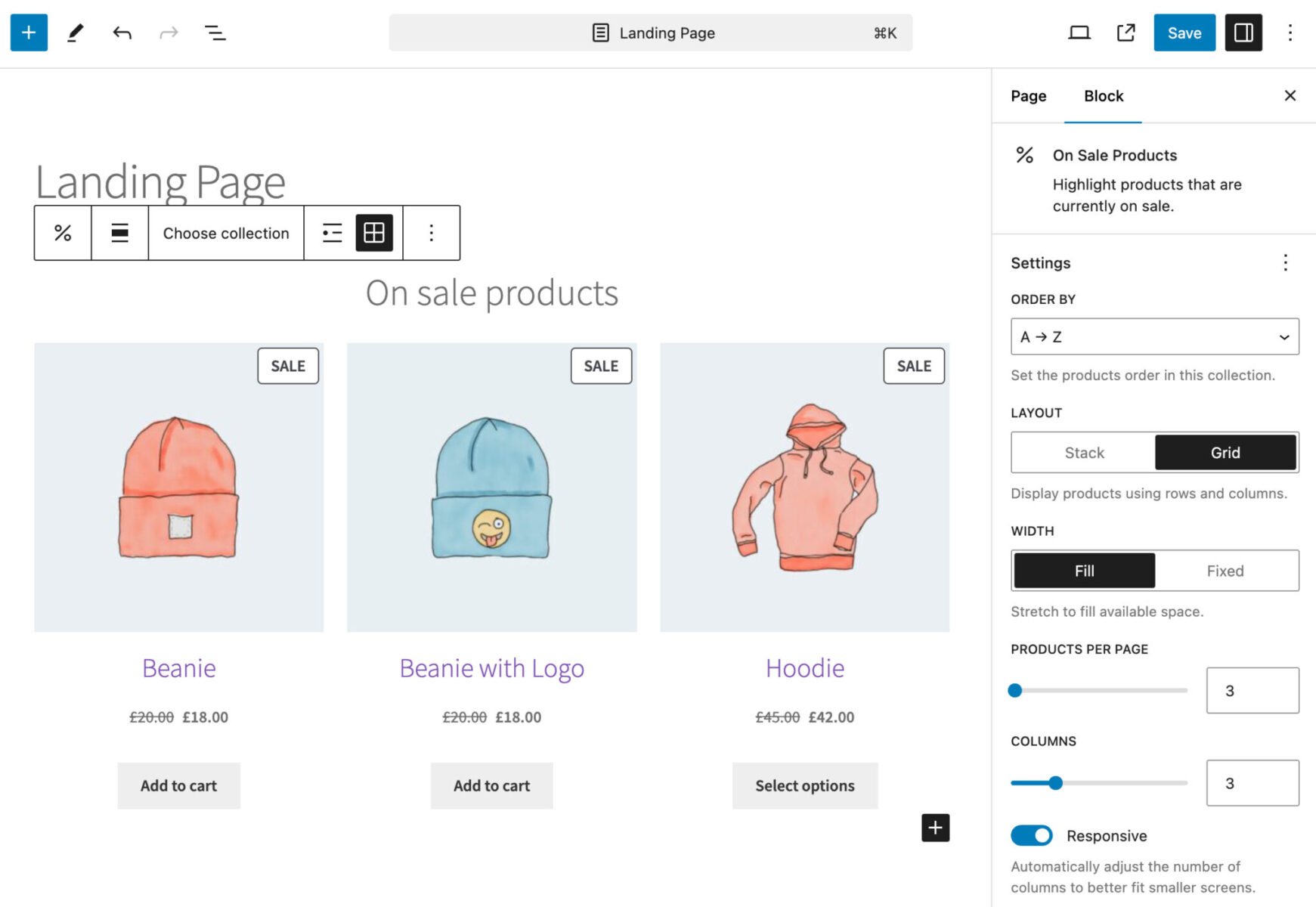
Although it’s probably fair to say that blocks are the future of WooCommerce site building, shortcodes continue to play a vital role.
Complete list of all WooCommerce shortcodes and their uses
Now we’ve got more of an understanding of what shortcodes are, let’s look at each WooCommerce shortcode individually.
WooCommerce product shortcode: How to display a single product’s thumbnail and add to cart button
The [product] shortcode in WooCommerce allows you to display a single product anywhere on your site using its ID or SKU. It’s ideal for embedding featured items within blog posts, landing pages or custom layouts without needing a full product grid.
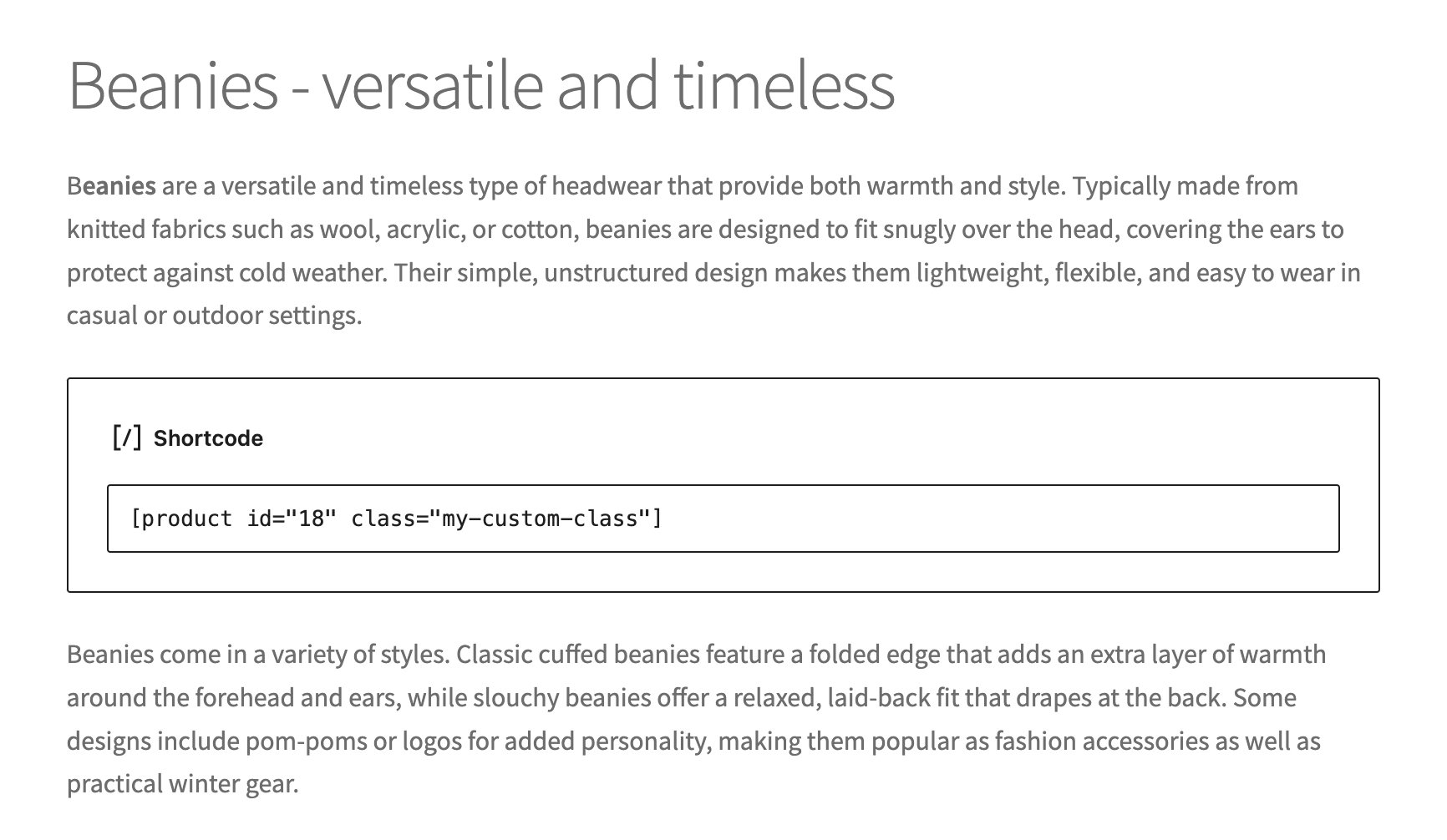
The shortcode outputs the product’s image, title, price and Add to Cart button, following your theme’s styling. For example: [product id="123"]. It offers a simple way to highlight key products and improve conversions by placing purchase options directly within content.
Usage
[product id="123" class="my-custom-class"]
Attributes
id– define which product to display by its unique product IDsku– define which product to display using its SKU instead of an IDclass– add custom CSS classes for additional styling or layout control
How to display a single product page
The [product_page] shortcode in WooCommerce allows you to embed the full single product page layout anywhere on your site. Unlike the [product] shortcode, which displays a compact product summary, [product_page] outputs the complete product template, including images, tabs, descriptions, reviews, meta information and the Add to Cart form.
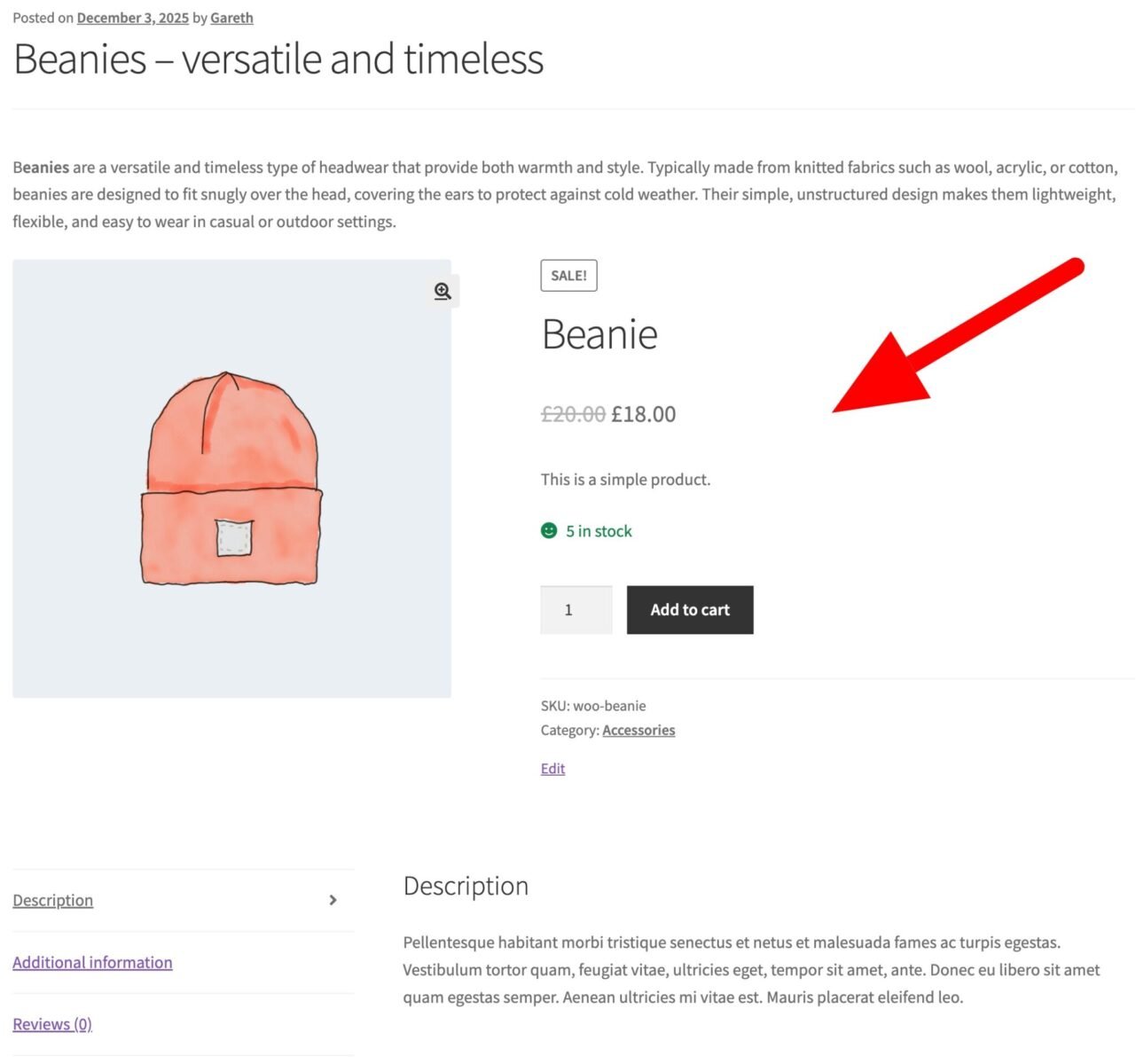
This makes it especially useful when building custom product landing pages, creating alternative layouts, or integrating a product showcase into a page builder layout while retaining all native WooCommerce functionality.
The shortcode requires minimal setup – simply insert [product_page id="123"] into any post, page, or widget area, and WooCommerce renders the full product page automatically. Because it pulls in the full template, it remains compatible with your theme’s styling and any product-related plugins.
Usage
[product_page id="123" class="my-custom-class"]
Attributes
id– define which product to display by its unique product IDsku– define which product to display using its SKU instead of an IDclass– add custom CSS classes for additional styling or layout control
WooCommerce category shortcode: How to display products from a single category
The [product_category] shortcode in WooCommerce lets you display products from a specific product category anywhere on your site. It’s ideal for building custom category-based landing pages, highlighting seasonal collections, or showcasing featured groups of products within blog posts and marketing pages.
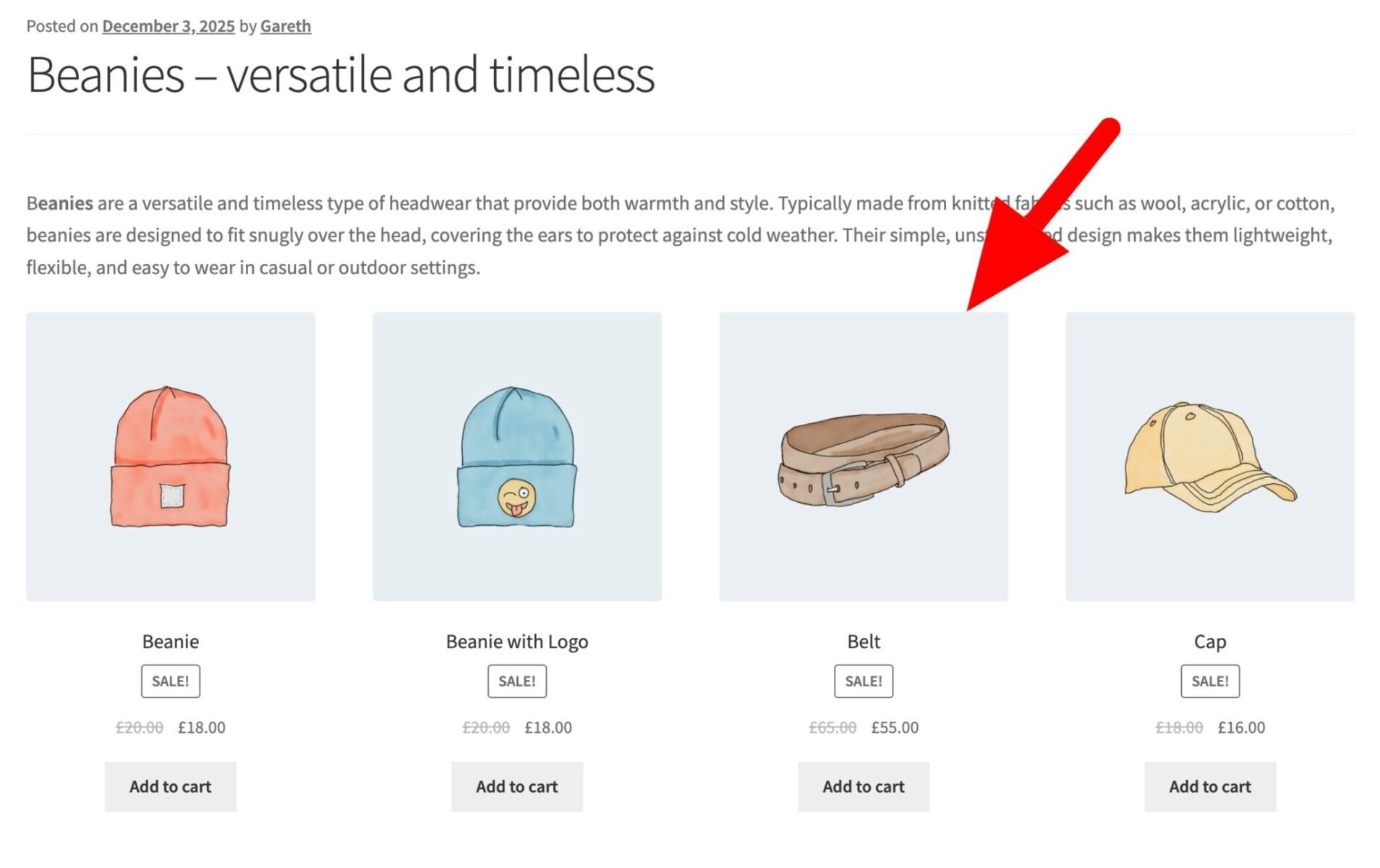
When the shortcode is added, WooCommerce outputs a product grid based on the categories you specify, following your theme’s styling and WooCommerce’s standard product loop. You can customize the layout using attributes such as column count, product limit and ordering rules.
It gives you flexible control over how category-based product listings appear without needing template overrides or page builder widgets.
Usage
[product_category category="hoodies" columns="3" limit="6"]
Attributes
category– a single category slug to display products fromlimit– sets how many products to showcolumns– determines how many columns the product grid usesorderby– controls how products are ordered (e.g., title, date, price)order– sets ascending or descending order for the output
How to display one or more categories using a WooCommerce shortcode
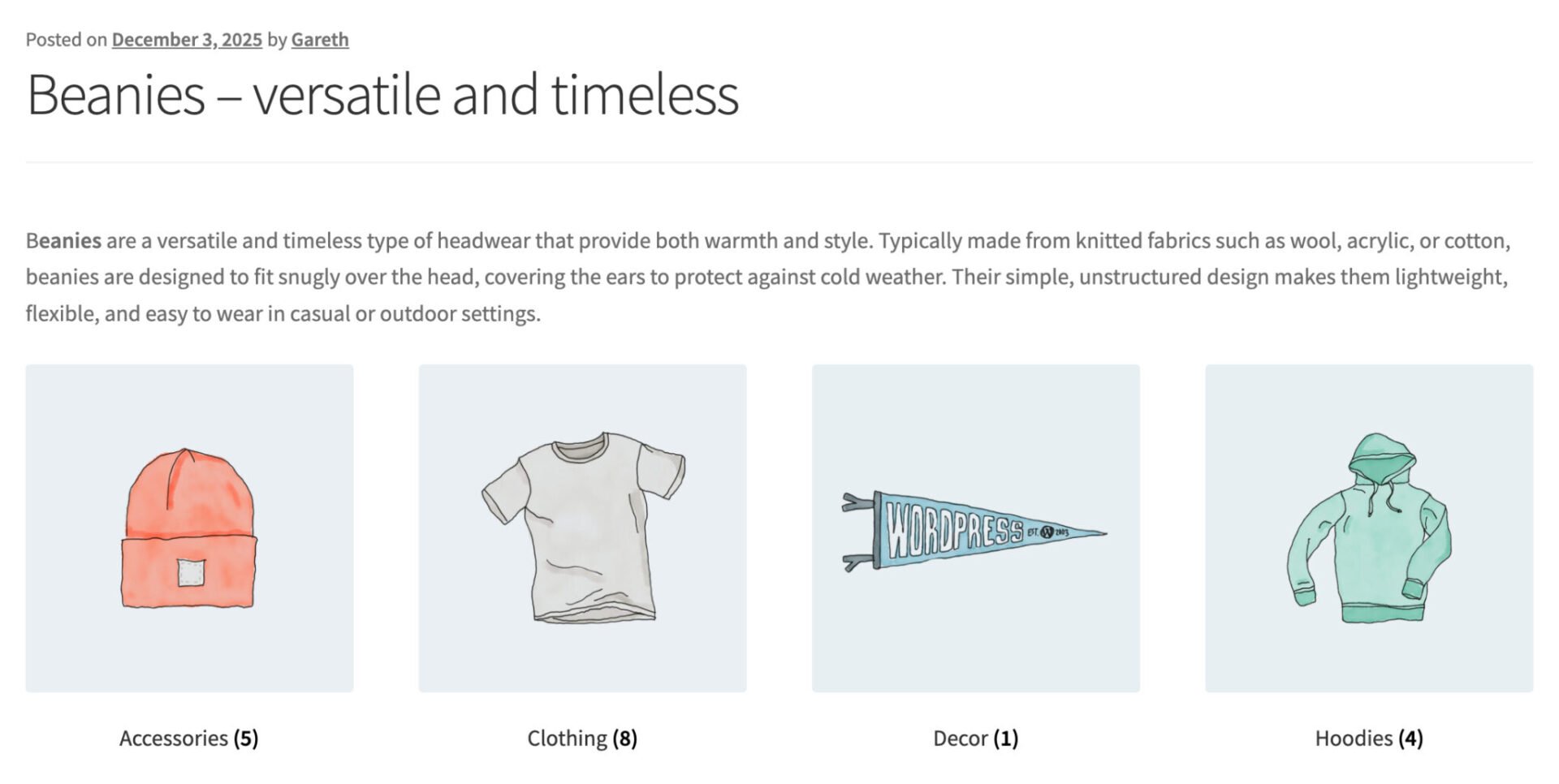
The [product_categories] shortcode in WooCommerce displays a list or grid of product categories, rather than individual products. It’s useful for building custom shop landing pages, category overviews, or navigational layouts that highlight your store’s main product groups.
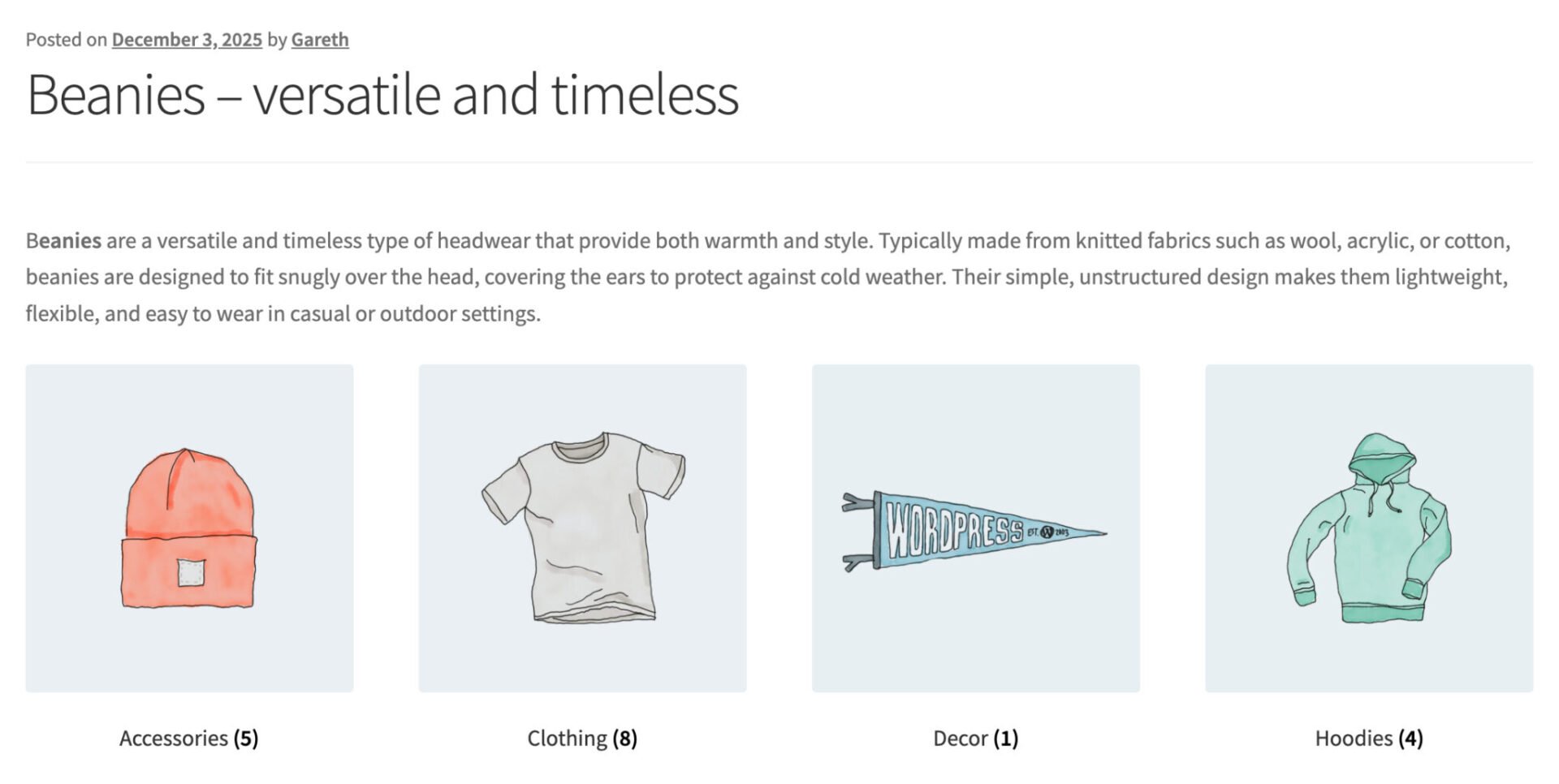
When inserted, the shortcode outputs category thumbnails, names and optional product counts – automatically styled according to your theme. This allows you to create flexible catalogue-style pages without modifying templates or relying on page builders. You can control the layout by specifying the number of columns, the order of categories and whether to include empty categories.
Usage
[product_categories number="6" columns="3" hide_empty="false"]
Attributes
number– sets how many categories to displayinclude– lists which categories to include by IDorderby– determines how categories are sorted (e.g., name, slug, id)order– sets ascending or descending ordercolumns– controls how many columns the grid usesparent– displays only categories with a specific parent IDhide_empty– hides categories with no products when set to true
WooCommerce add to cart shortcode: How to insert an add to cart button
The [add_to_cart] shortcode in WooCommerce allows you to display an Add to Cart button for any product directly within posts, pages or widget areas. This makes it especially useful for creating product-focused landing pages, embedding purchase options within blog content, or highlighting key products without showing the full product template.
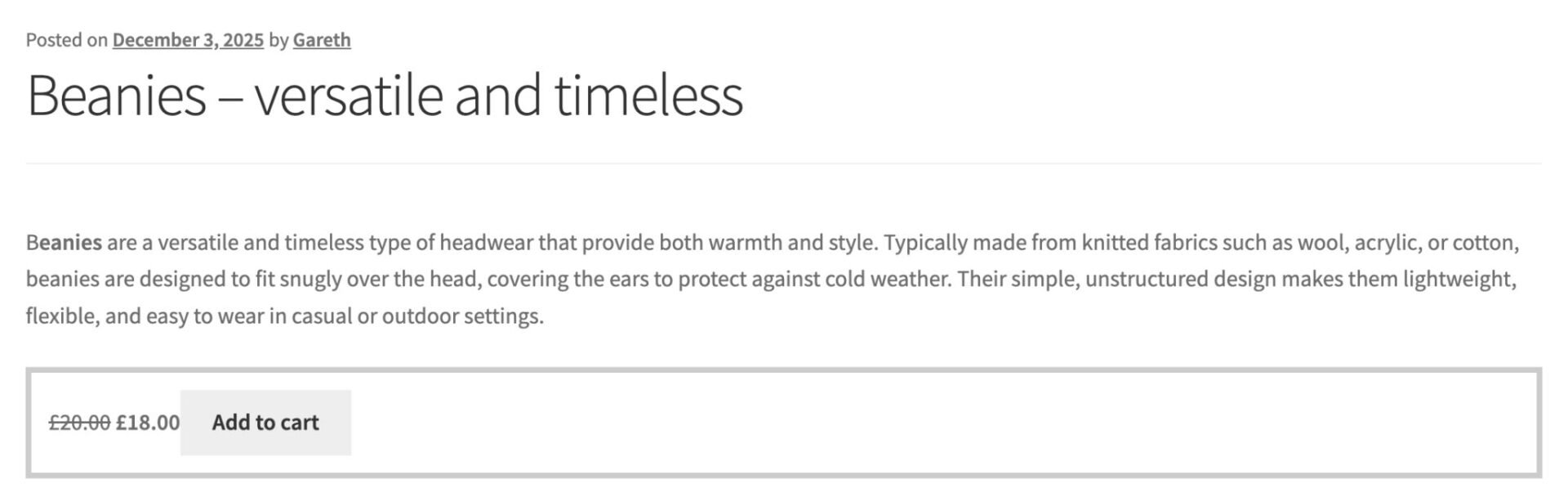
When rendered, the shortcode outputs an Add to Cart button (with quantity selector for simple products), following your theme’s styling and WooCommerce’s native behaviour. If the product is variable, the button links through to the product page instead.
The [add_to_cart] shortcode gives you a quick way to add purchasable elements anywhere on your site.
Usage
[add_to_cart id="123" show_price="true"]
Attributes
id– specifies the product by IDsku– specifies the product by SKU instead of IDquantity– sets the quantity added to the cart when clickedshow_price– displays the product’s price alongside the button when set to truestyle– allows inline CSS styling to customise the button’s appearanceclass– adds custom CSS classes for additional styling or layout control
How to insert a link to add a product to the cart
Similar to the [add_to_cart] shortcode, the [add_to_cart_url] shortcode generates a direct URL that adds a specific product to the cart. Instead of displaying a button or full product layout, it produces a link that, when clicked, automatically adds the chosen product to the customer’s cart and optionally redirects them to the cart or checkout page.
This shortcode is useful for email campaigns, call-to-action buttons, or custom landing pages where you want to streamline the purchasing process.
Usage
[add_to_cart_url id="123"]
Attributes
id– specifies the product by IDsku– specifies the product by SKU instead of IDquantity– sets the quantity added to the cart when clickedshow_price– displays the product’s price alongside the button when set to truestyle– allows inline CSS styling to customise the button’s appearanceclass– adds custom CSS classes for additional styling or layout control
How to list multiple products in a grid format
The [products] shortcode in WooCommerce allows you to display multiple products in a flexible grid layout anywhere on your site. Unlike single-product shortcodes, it supports showing a collection of products based on criteria such as IDs, SKUs, categories, tags, or attributes.
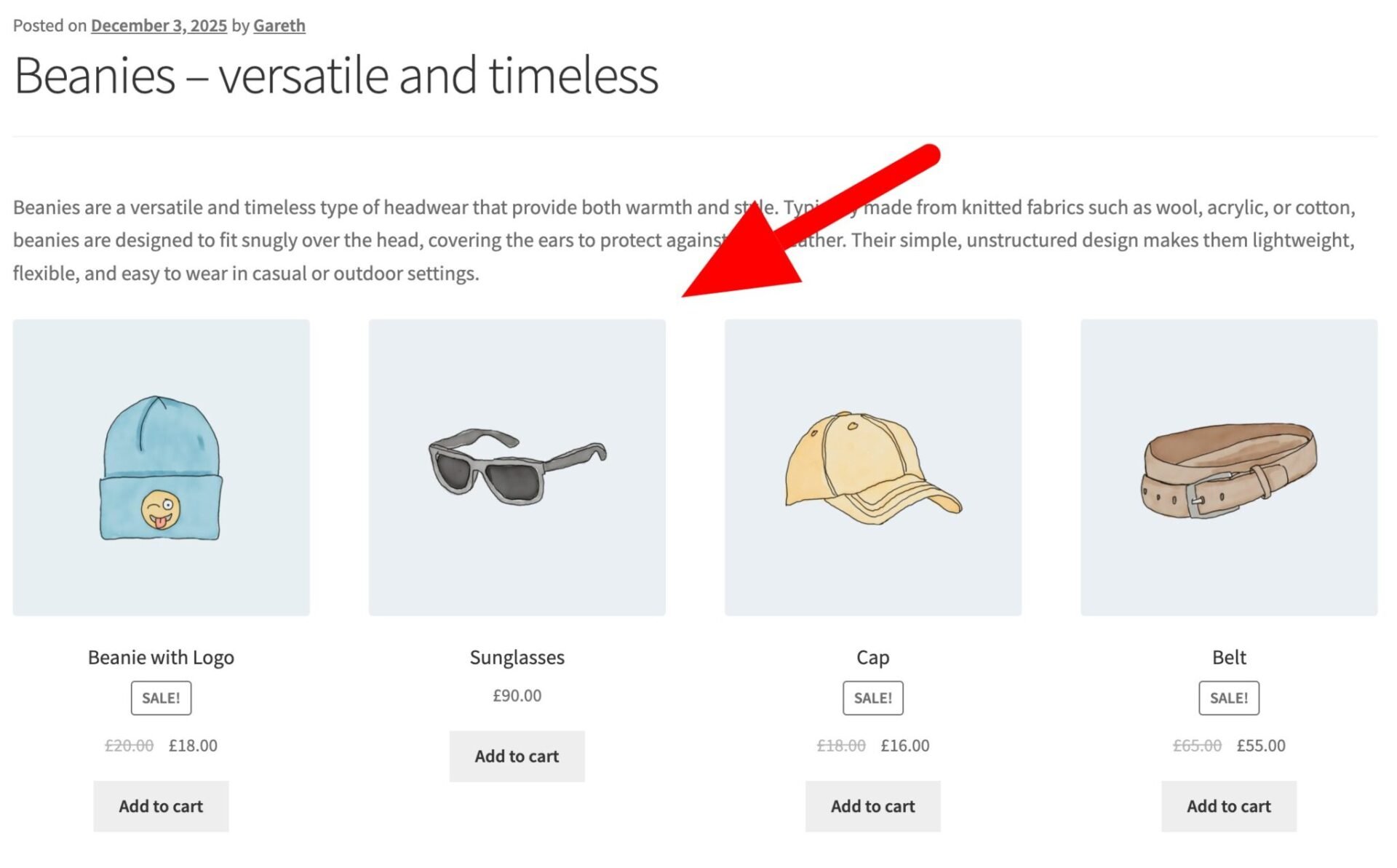
This makes it ideal for creating featured product sections, promotional landing pages or category-specific product displays. You can control the number of products, the number of columns, ordering, and which products are included or excluded. The shortcode outputs product images, titles, prices, and Add to Cart buttons in a fully responsive grid, following your theme’s styling.
Usage
[products limit="8" columns="4" category="hoodies, t-shirts" orderby="date" order="DESC"]
Attributes
limit– number of products to displaycolumns– number of columns in the product gridorderby– sets the sorting criteria (e.g., date, title, price)order– sets ascending (ASC) or descending (DESC) orderids– displays specific products by their IDsskus– displays specific products by their SKUscategory– displays products from specified categoriestag– displays products with specific tagsattribute– filters products by a specific attributeclass– adds custom CSS classes for styling
How to display recently added products
The [recent_products] WooCommerce shortcode displays a grid of your store’s most recently added products. It’s a convenient way to highlight new arrivals on your homepage, landing pages, blog posts, or promotional content.
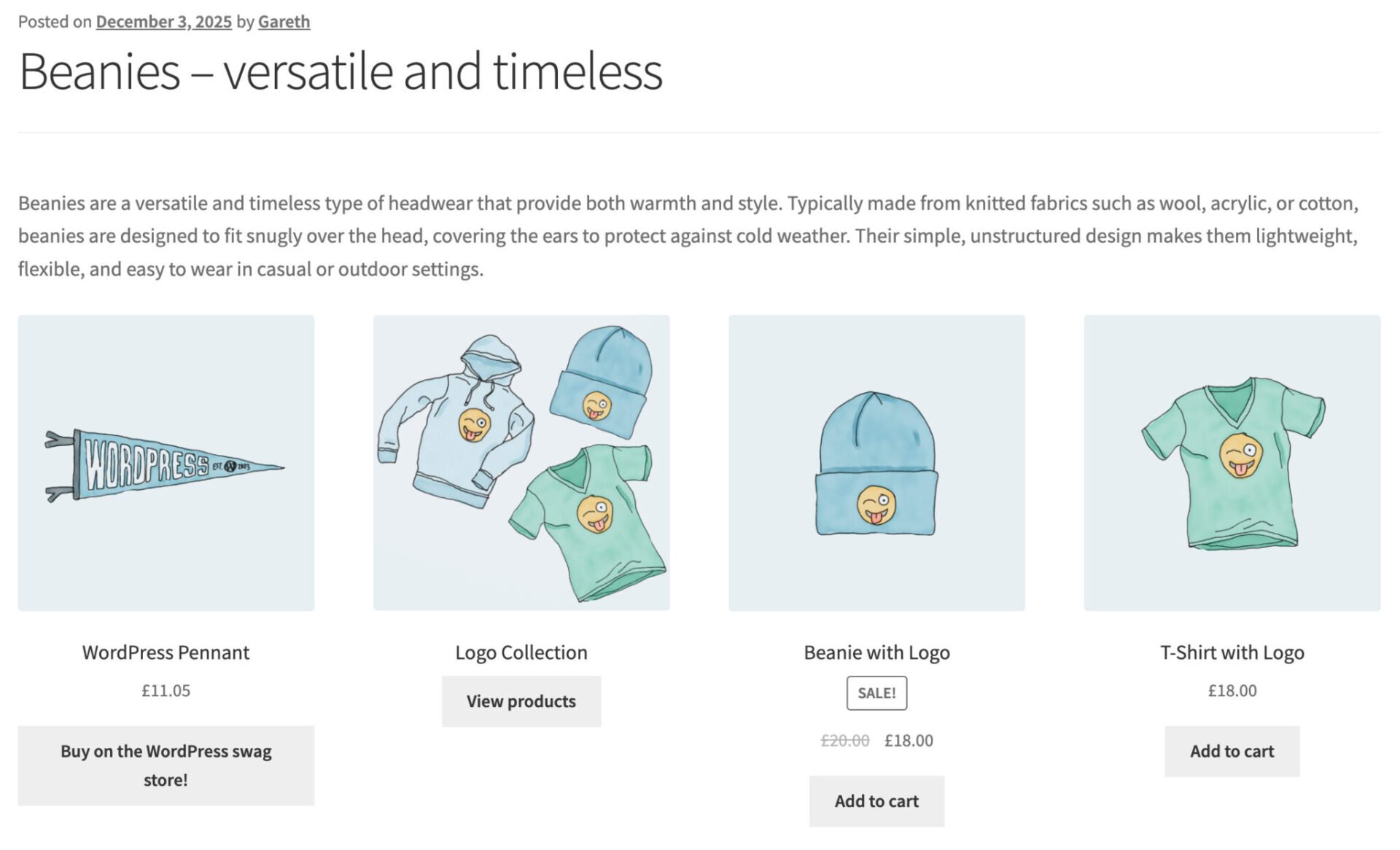
When added to any post or page, WooCommerce dynamically pulls the latest published products and displays them with images, titles, prices and Add to Cart buttons. The shortcode follows your theme’s styling and outputs a standard WooCommerce product loop, ensuring full compatibility – making it easy to create engaging sections that showcase what’s new in your store, helping encourage repeat customers and improve product discovery.
Usage
[recent_products limit="6" columns="3"]
Attributes
limit– sets how many recent products to displaycolumns– controls how many columns appear in the gridorderby– determines how products are sorted (typically by date)order– chooses ascending or descending orderclass– adds custom CSS classes for additional styling or layout adjustmentscategory– optional filter to show only recent products from specific categories
How to display products that are currently on sale
The [sale_products] shortcode in WooCommerce displays products that are currently on sale, making it ideal for highlighting discounted items on landing pages, homepages or promotional campaign pages.
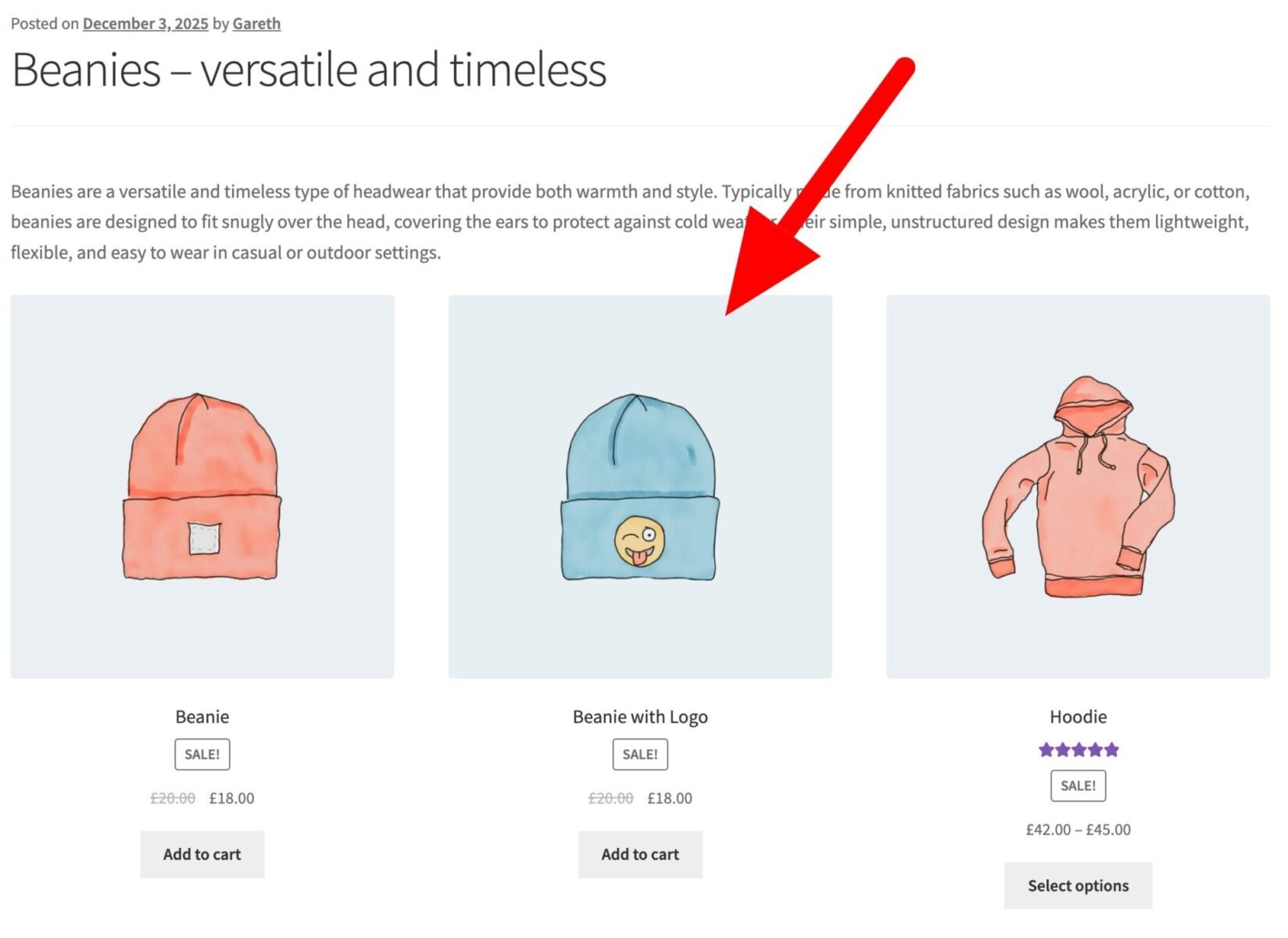
When added to any post or page, the shortcode automatically pulls products with active sale prices and arranges them in a responsive product grid. Each product displayed includes its sale badge, image, title, price and Add to Cart button, following your theme’s styling.
Usage
[sale_products limit="8" columns="4"]
Attributes
limit– sets how many sale products to displaycolumns– defines how many columns the product grid usesorderby– determines the sorting method (e.g., date, title, price)order– sets ascending (ASC) or descending (DESC) orderclass– adds custom CSS classes for styling or layout controlcategory– optionally restricts sale products to specific categories
How to display your best-selling products
The [best_selling_products] WooCommerce shortcode displays a grid of your store’s top-selling products based on total sales. It’s an effective way to showcase items that are already performing well, using social proof to encourage more conversions.
This shortcode is ideal for homepages, sidebar widgets, landing pages, or gift guides where you want to highlight popular choices. When inserted, WooCommerce automatically fetches the products with the highest sales counts and displays them with their images, titles, prices and Add to Cart buttons.
Usage
[best_selling_products limit="6" columns="3"]
Attributes
limit– defines the number of best-selling products to displaycolumns– sets how many columns appear in the product gridorderby– determines sorting method; typically defaults to sales countorder– sets ascending or descending orderclass– adds custom CSS classes for styling or layout adjustmentscategory– optionally filters best sellers within specific categories
How to display the highest rated products in your store
The [top_rated_products] shortcode displays a grid of products with the highest customer ratings. It’s particularly useful for highlighting items that consistently receive positive reviews, helping build trust and encourage conversions through social proof.
You can add this shortcode to any page, post or widget area to create curated sections such as “Customer Favourites” or “Top Rated Picks.” WooCommerce automatically pulls products based on their average rating and displays them with images, titles, prices, star ratings and Add to Cart buttons.
Usage
[top_rated_products limit="6" columns="3"]
Attributes
limit– controls how many top-rated products to displaycolumns– sets the number of columns in the grid layoutorderby– defines sorting order (typically by rating or title)order– sets ascending or descending orderclass– adds custom CSS classes for styling or layout adjustmentscategory– optionally restricts results to products within specified categories
How to display featured products
The [featured_products] shortcode displays a grid of products that you’ve marked as Featured in your WooCommerce store settings. This makes it especially useful for highlighting key items on homepages, landing pages, gift guides or promotional sections.
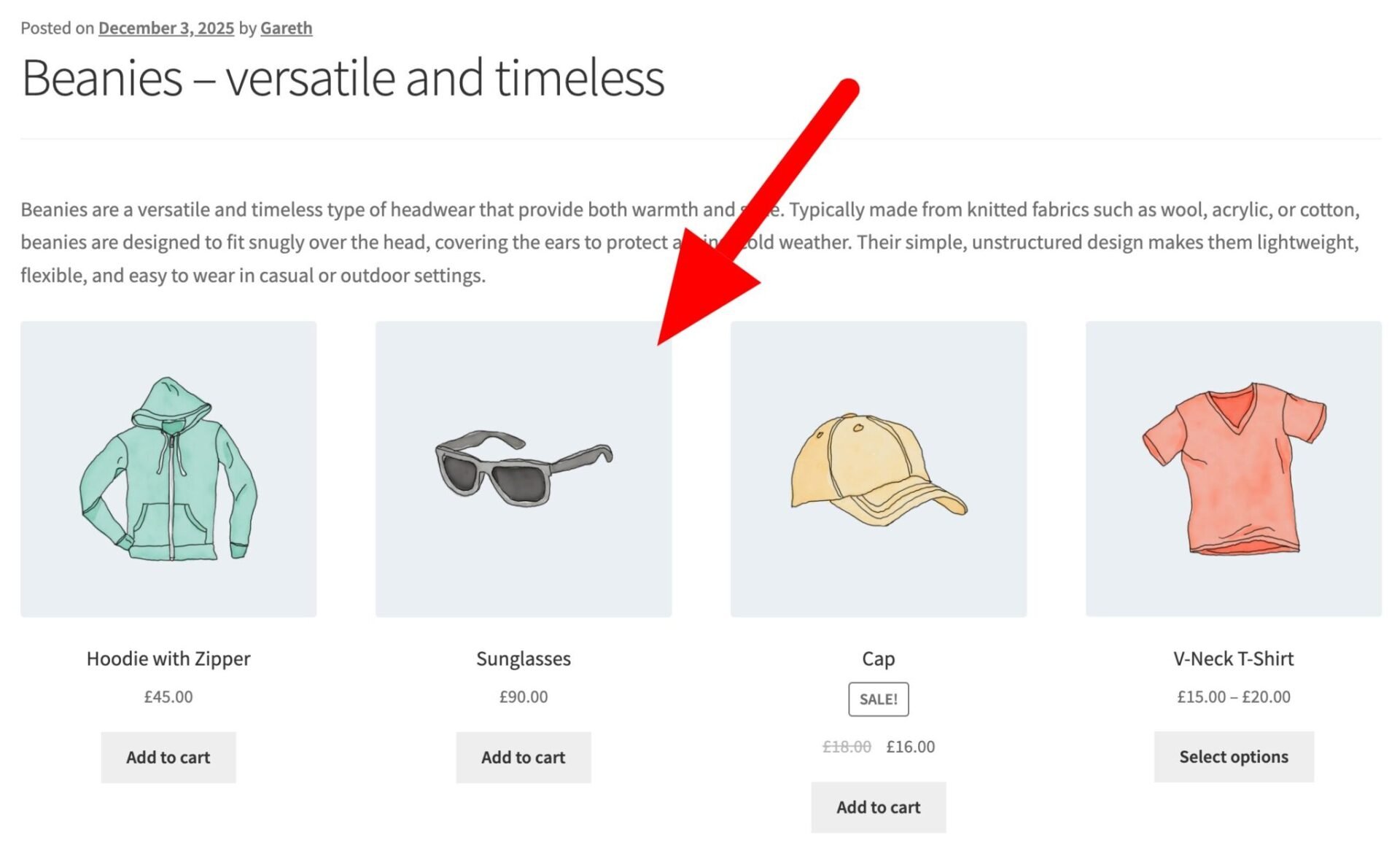
When inserted into any post, page or widget area, WooCommerce automatically pulls products flagged as featured and presents them with images, titles, prices and Add to Cart buttons.
Usage
[featured_products limit="6" columns="3"]
Attributes
limit– sets how many featured products to showcolumns– defines how many columns the product grid usesorderby– determines the sorting criteria (e.g., date, title, price)order– sets ascending (ASC) or descending (DESC) orderclass– adds custom CSS classes for extra styling or layout adjustmentscategory– optionally filters featured products by specific categories
How to display products by attribute
The [product_attribute] shortcode in WooCommerce allows you to display products that share a specific attribute, such as color, size, or material. It’s useful for creating targeted product sections on landing pages, category pages, or promotional content, helping customers quickly find products with specific characteristics.
When added to a page or post, the shortcode outputs a responsive product grid showing images, titles, prices, and Add to Cart buttons for all products that match the specified attribute. It allows you to highlight filtered product collections without custom queries or complex coding.
Usage
[product_attribute attribute="color" filter="blue" columns="4" limit="8"]
Attributes
attribute– the slug of the product attribute to filter by (e.g., color)filter– the specific attribute value to display (e.g., blue)limit– sets the maximum number of products to showcolumns– defines how many columns the product grid should haveorderby– determines the sorting method (e.g., date, title, price)order– sets ascending (ASC) or descending (DESC) orderclass– adds custom CSS classes for styling or layout adjustments
How to display related products in WooCommerce
The [related_products] shortcode in WooCommerce displays products related to a specific product based on categories and tags. It’s ideal for upselling or cross-selling by showing complementary items on product pages, landing pages, or promotional content.
When added, the shortcode outputs a responsive grid featuring product images, titles, prices, and Add to Cart buttons, following your theme’s styling. This allows you to create custom “You May Also Like” sections outside the default product page layout, helping increase average order value and improve product discovery without modifying templates or code.
Usage
[related_products id="123" limit="4" columns="4"]
Attributes
id– specifies the product ID to find related products forlimit– determines how many related products to displaycolumns– sets the number of columns in the product gridorderby– defines the sorting method (e.g., title, date)order– sets ascending (ASC) or descending (DESC) orderclass– adds custom CSS classes for styling or layout adjustments
How to display WooCommerce shop messages
The [shop_messages] shortcode in WooCommerce displays any queued store notices or system messages to the customer. These include cart updates, coupon messages, errors, success notices, and informational alerts that WooCommerce normally shows on core pages such as Cart, Checkout, and My Account.
This shortcode is especially useful when you’re building custom layouts or landing pages where WooCommerce notices may not appear automatically. When you add this shortcode anywhere on a page, you ensure customers see important updates – such as “Product added to cart” or “Coupon applied” – even if they’re not on a standard WooCommerce template. This helps maintain clarity in the shopping experience and reduces user confusion when interacting with custom workflows.
Usage
[shop_messages]
Attributes
None.
WooCommerce track order shortcode: How to show an ‘Order Tracking’ page
This is something of a hidden secret in WooCommerce. The [woocommerce_order_tracking] shortcode provides customers with a simple, self-service way to check the status of their orders without needing an account.
When added to any page or post, it displays the WooCommerce order-tracking form, which asks for the customer’s order ID and billing email. Once submitted, WooCommerce retrieves the order status – such as processing, completed, or on hold – and displays it directly on the page. This makes the shortcode ideal for creating a standalone “Track Your Order” page, especially for stores that allow guest checkout.
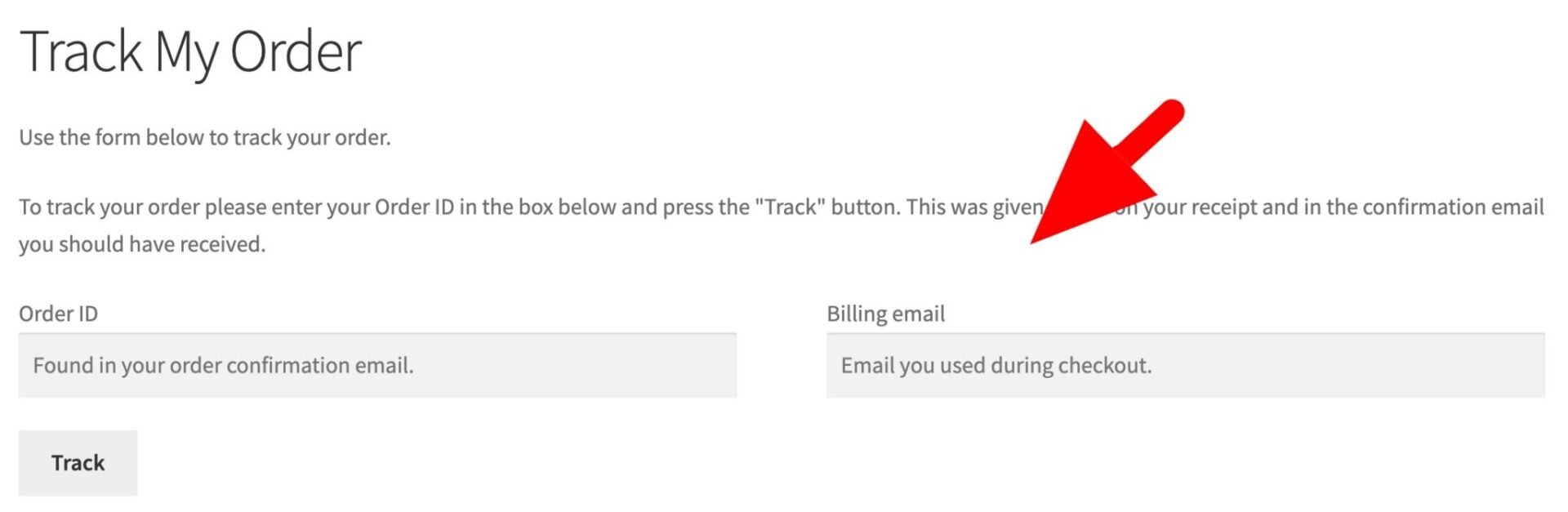
As such, it improves the customer experience by reducing support requests and giving shoppers quick access to real-time order updates. The shortcode follows your theme’s styling and works seamlessly across all WooCommerce-compatible themes.
Usage
[woocommerce_order_tracking]
Attributes
None
WooCommerce cart shortcode: How to display the cart page
The [woocommerce_cart] shortcode displays the full WooCommerce cart page on any post, page or widget area. When inserted, it renders the customer’s cart contents, quantity selectors, coupon field and cart totals, just as on the default cart page created during installation.
This shortcode is useful if you need to rebuild or customize your cart layout, create alternative cart pages, or integrate the cart into landing pages or widget areas. It requires no parameters, just outputs the standard WooCommerce cart template.
WooCommerce inserts this shortcode when it generates the Cart page. However, certain themes might override it with the cart block instead.
Usage
[woocommerce_cart]
Attributes
None
WooCommerce checkout shortcode: How to display the checkout page
The [woocommerce_checkout] shortcode displays the complete WooCommerce checkout page anywhere on your site. When added to a post, page, or widget area, it renders the checkout form, including billing and shipping fields, order summary, and payment options.
This shortcode is especially useful if you want to create a custom checkout page, integrate the checkout into a landing page, or duplicate the checkout experience for specific campaigns.
It does not require any parameters – simply inserting [woocommerce_checkout] is enough. WooCommerce automatically handles all functionality, including cart validation, payment processing, and order submission, ensuring a seamless and secure checkout experience.
Usage
[woocommerce_checkout]
Attributes
None
How to add a ‘My Account’ page in WooCommerce
The [woocommerce_my_account] shortcode displays the full WooCommerce My Account area, giving customers access to their dashboard, orders, downloads, addresses, account details and any custom endpoints added by plugins.
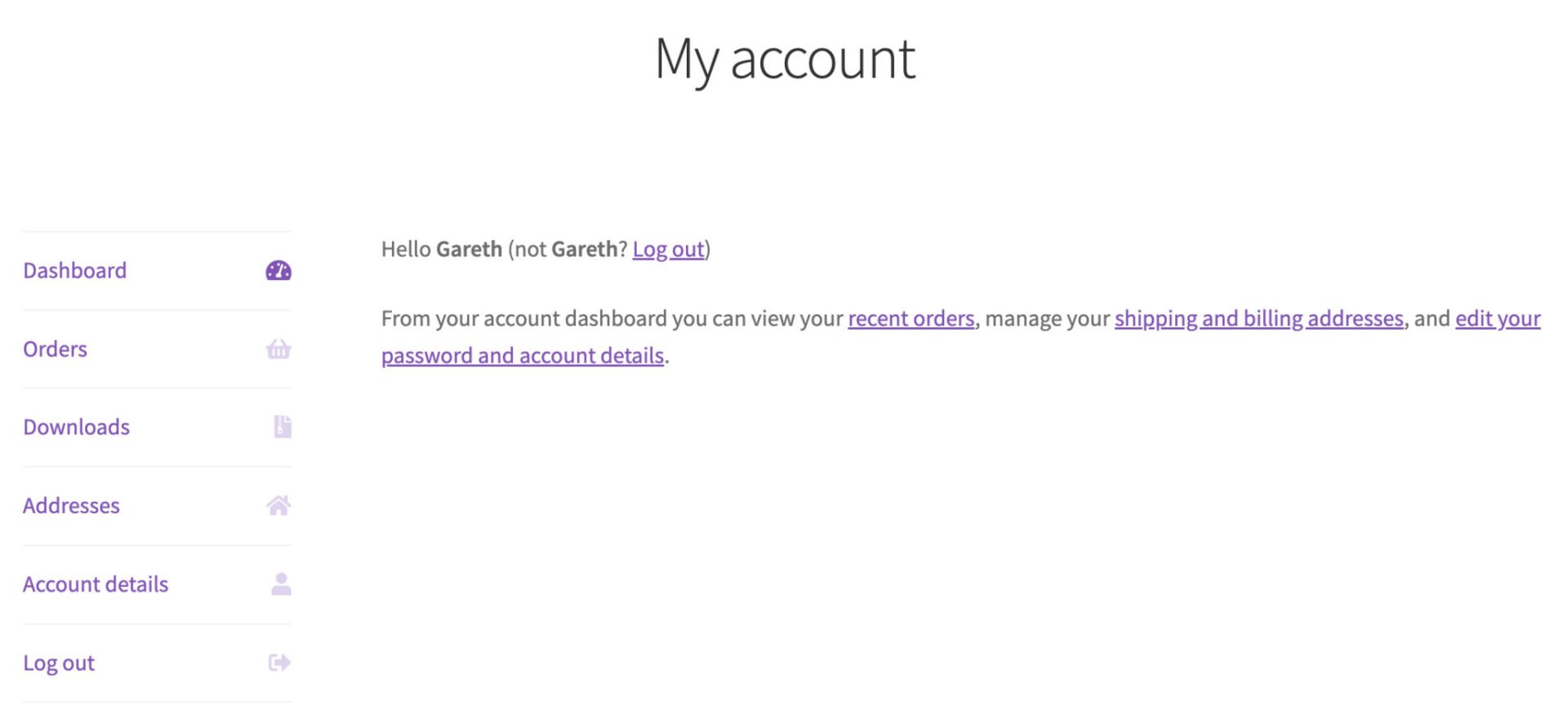
When the shortcode is inserted into any page, WooCommerce automatically renders the account navigation menu and the corresponding content based on the user’s login status. Logged-in customers will see their account information, while logged-out visitors are shown a login and registration form.
This makes the shortcode essential for creating or recreating the My Account page, especially when customising layouts or building fully bespoke customer portals.
Usage
[woocommerce_my_account]
Attributes
None
How to display a single brand image on a product page
The [product_brand] shortcode displays a single brand’s image (logo or thumbnail) on a single product page (not on other posts or pages), linking to the brand’s archive page. It only shows one brand, even if multiple brands are assigned.
Usage
[product_brand width="64px" height="64px" class="alignright"]
Parameters
width– controls the width (in px, % or other CSS unit) of the displayed brand imageheight– controls the height of the brand imageclass– applies a CSS class (e.g., alignment or custom styling) to the image container
How to display a grid of brand thumbnails
The [product_brand_thumbnails] shortcode displays an organized grid of all brand thumbnails (logo or image) in your store, each linking to its brand archive page. It’s useful for creating a brand-directory or storefront-wide “Browse by Brand” page.
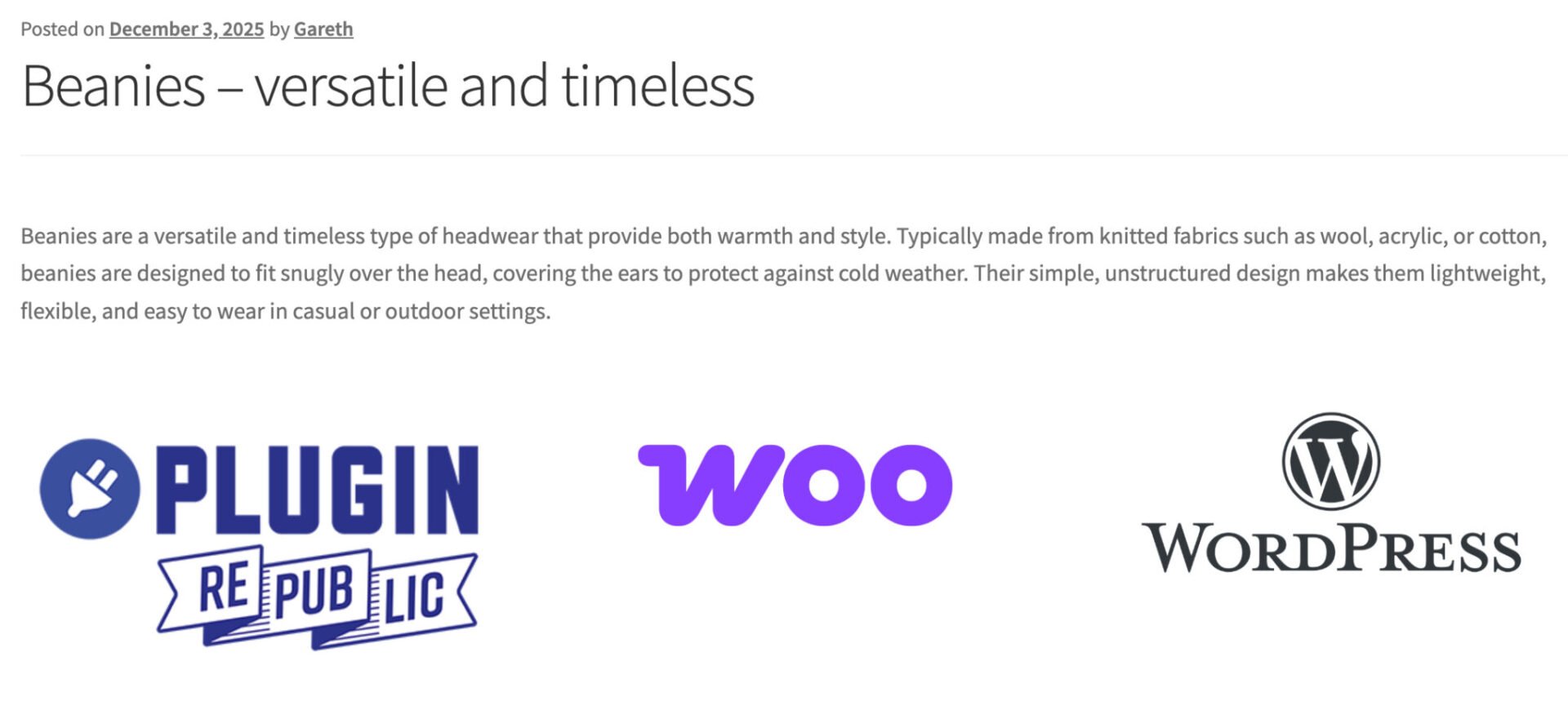
Usage
[product_brand_thumbnails number="12" show_empty="false"]
Attributes
number– the maximum number of brand thumbnails to displaycolumns– defines how many columns the thumbnail grid will use- show_empty – determines whether to include brands that currently have no products. (true or false)
- orderby – sets how the brands are sorted (e.g., by name or date)
- exclude – allows excluding specific brand IDs from the list
How to display a grid of brand thumbnails and descriptions
The [product_brand_thumbnails_description] shortcode displays a grid of some or all brand thumbnails in your store, along with each brand’s description and links to the respective brand archive pages. It’s ideal for a “Browse by Brand” directory or landing page, giving customers both the brand logo and a short summary of what the brand represents.
Usage
[product_brand_thumbnails_description number="12" show_empty="false"]
Attributes
number– the maximum number of brand thumbnails to displaycolumns– defines how many columns the thumbnail grid will use- show_empty – determines whether to include brands that currently have no products. (true or false)
- orderby – sets how the brands are sorted (e.g., by name or date)
- exclude – allows excluding specific brand IDs from the list
How to display a list of all brands in your store
The [product_brand_list] shortcode shows an alphabetical (A–Z) index list of all brands in your store – each brand name links to its archive page. It’s useful for building a simple “Browse by Brand” directory page.
Usage
[product_brand_list show_empty_brands="true"]
Attributes
show_top_links– when set to “true”, displays a quick link to the top of the list for easier navigation of the brand listshow_empty_brands– if “true”, includes brands that currently have no products; if “false”, hides empty brands
How to display a brand’s products
The [brand_products] shortcode displays all products associated with a specified brand – essentially showing a grid of that brand’s products on any page or post. For example:
This lets you create brand‑specific catalog pages or highlight a brand’s entire range.
Usage
[brand_products brand="plugin-republic" per_page="12" columns="4"]
Attributes
brand– the slug of the brand whose products should be displayedper_page– sets how many products to show (the maximum number in the grid)columns– defines how many columns the products grid should useorderby– determines the sorting attribute (e.g., title, date) for listing the productsorder– specifies ascending (asc) or descending (desc) order for product sortingcategory– optional filter: restricts the displayed products to those within certain product categories under that brand
WooCommerce product search shortcode: How to display a dynamic product search bar
The [woocommerce_product_search] shortcode adds a live search field that shows product results instantly as users type, including titles, prices, short descriptions and Add-to-Cart buttons. It’s highly configurable – just note the number of attributes you can use.
Usage
[woocommerce_product_search show_description="yes" limit="10" product_thumbnails="yes"]
Attributes
order– sorts result list in “ASC” (ascending) or “DESC” (descending) order; default is descendingorder_by– criteria for sorting (e.g., “date”, “title”, “ID”, “sku” or “”)title– enable (“yes”) or disable (“no”) searching within product titlesexcerpt– toggle searching in short descriptions (excerpt)content– toggle searching in full product descriptionstags– include (“yes”) or exclude (“no”) product tags in searchcategories– include related product categories in the search processattributes– include product attributes (like size or colour)sku– enable (“yes”) or disable (“no”) searching by SKUlimit– maximum number of product results shown (default 10)category_results– show product category suggestions (“yes” or “no”)category_limit– maximum number of category suggestionsproduct_thumbnails– show product images (“yes” or “no”)show_description– show the product short description (“yes” or “no”)show_price– show product price (“yes” or “no”)show_add_to_cart– show the Add to Cart button on results (“yes” or “no”)show_more– show a link to load more results when availableshow_clear– display a clear (reset) button in the search fieldplaceholder– custom placeholder text shown in the search boxno_results– custom message displayed when no products matchblinker_timeout– time (ms) to show the loading indicatordelay– delay (ms) after typing stops before searching startscharacters– minimum characters before search triggersdynamic_focus– show/hide results when input gains/loses focusfloating– display results floating over page contentinhibit_enter– disable Enter key’s default behaviour in search fieldsubmit_button– show a submit button next to the fieldsubmit_button_label– label text for the submit buttonnavigable– allow arrow key navigation through resultsheight– maximum height for results container (CSS unit)wpml– Filter results by language when using WPML
Bonus shortcodes
So that’s a list of all WooCommerce shortcodes. Let’s take a look at a couple of other shortcodes from other plugins.
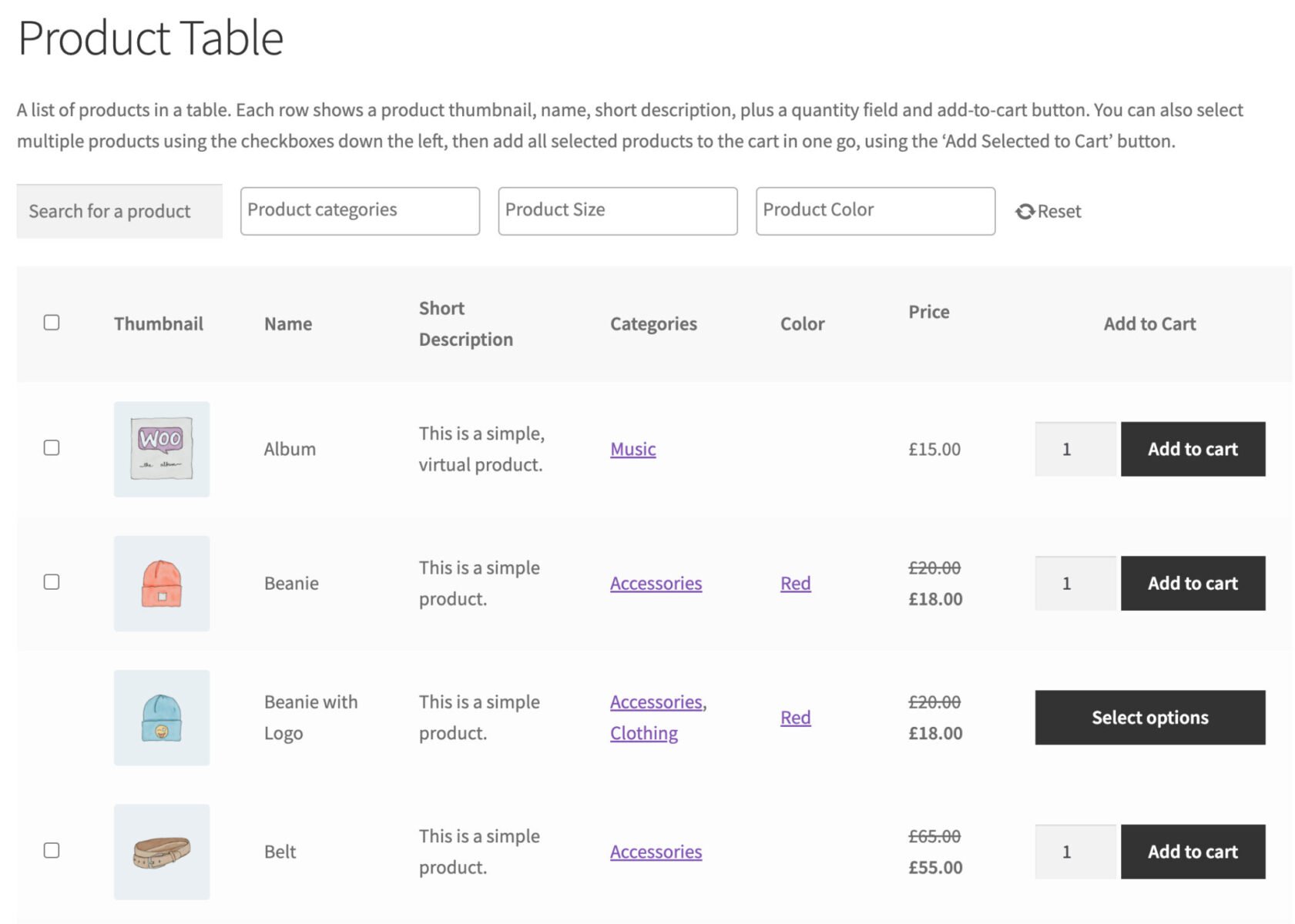
How to display list of products in a table format
The WooCommerce Product Table Ultimate plugin allows you to display products in a table format, rather than the standard grid. This makes it easier for your users to order multiple products from the same page.
Using this shortcode with its attributes, you can quickly render a fully functional, filterable product table – ideal for catalogues, wholesale ordering pages, or product listing layouts – without coding.
Usage
[product_table_ultimate]
Attributes
columns– defines which columns appear in the table (e.g., sku, thumbnail, name, price, add-to-cart)source– determines which products to show (e.g. “all”, “categories”, “tags”, “taxonomies”, or a custom query via “callback”)categories,tags,taxonomies– used when source is set to filter by those conditions, specifying IDs to includeorder_by– defines the sorting method (e.g. by “price”, “date”, “title”, or “popularity”)order– sets ascending (ASC) or descending (DESC) orderper_page– limits how many products are shown per page (useful for pagination)show_quantities– if set to “yes”, displays quantity selectors for each productvariations_display– controls how variations appear (e.g. “none”, “row”, “parent”)add_selected– when “yes”, adds checkboxes to each product so users can select multiple items and add them all to the cart
FAQs
WooCommerce shortcodes are small code snippets placed inside square brackets that let you display dynamic WooCommerce content anywhere on your site – including pages, posts and widgets. They act as shortcuts for adding features like product grids, the cart, checkout, account pages and more, without writing any custom code. Each shortcode can include parameters to control what appears, such as specific products, categories or layout settings. Shortcodes are flexible, theme-independent and work well in both the Block Editor and Classic Editor. Although less visual than blocks, they remain a powerful way to customise store pages and add WooCommerce functionality quickly.
You can edit WooCommerce shortcodes by adjusting the shortcode text directly in the page or post where it appears. In the Block Editor, select the Shortcode block, then modify the shortcode or its parameters in the text field. In the Classic Editor, simply locate the shortcode within the content area and edit it like regular text. To change what the shortcode outputs, you can update its parameters – for example, altering product IDs, categories, or the number of items displayed. WooCommerce doesn’t provide a visual interface for editing shortcode settings, so all customization is done by manually updating the shortcode’s text.
Shortcodes work by allowing WordPress to recognise special text wrapped in square brackets and replace it with dynamic content when a page loads. When you add a shortcode like [products] or [woocommerce_cart] to a page, WordPress scans the content, identifies the shortcode and runs the function associated with it. That function then generates the correct output, such as product listings or cart details, and inserts it into the page. Shortcodes can also include parameters that modify what is displayed. Because they run at render time, you can place them almost anywhere and WordPress will automatically convert them into functional content.
WooCommerce shortcodes – recap
In this article, we looked at every shortcode that comes with WooCommerce, information on how to use it, and attributes to configure it with. We also looked more generally at what shortcodes are and how to use them.